Attachments And Images
You can attach documents and images to a message for the AI to read — for example, a report to summarise, a spreadsheet to explain, or a screenshot of an error message.
Attaching A File
You can attach a file in any of these ways:
- Click the paperclip in the message box and choose files.
- Drag files onto the message box.
- Paste — Ctrl+V (⌘V on a Mac) — a copied file or screenshot.
On an iPhone or iPad, the paperclip offers Photo library, Take photo and Choose files.
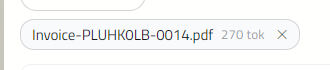
Each file will appear above the message box as a chip. Click × on a chip to remove it before you send. Click an image to see it full size.
Note
If there is no paperclip, the Assistant you are chatting with does not accept attachments.
What You Can Attach
You can attach the following kinds of file:
| Kind | File types |
|---|---|
| Documents | PDF, Word (.docx, .doc), Excel (.xlsx), PowerPoint (.pptx), text (.txt, .md, .rtf), .csv, .html, .json, .xml |
| Images | PNG, JPEG, GIF, WebP, BMP, HEIC |
Documents
Optima turns a document into text before the AI reads it. The chip shows roughly how much of the AI's memory the document will use, as a number of tokens. See Context Window.
If a chip says no text, Optima could not find any text in the file. This is typically a scanned PDF, which is a picture of a page. If a chip says failed, the file could not be read.
Very large documents — more than half of what the model can hold at once — will be refused. Send a shorter extract instead.
A document belongs to the message you sent it with. As a conversation grows, the oldest messages drop out of what the AI can see, and their documents go with them. When that happens, a note will say the document is no longer in the model's context. Attach it again if you need the AI to look at it.
The Documents Card
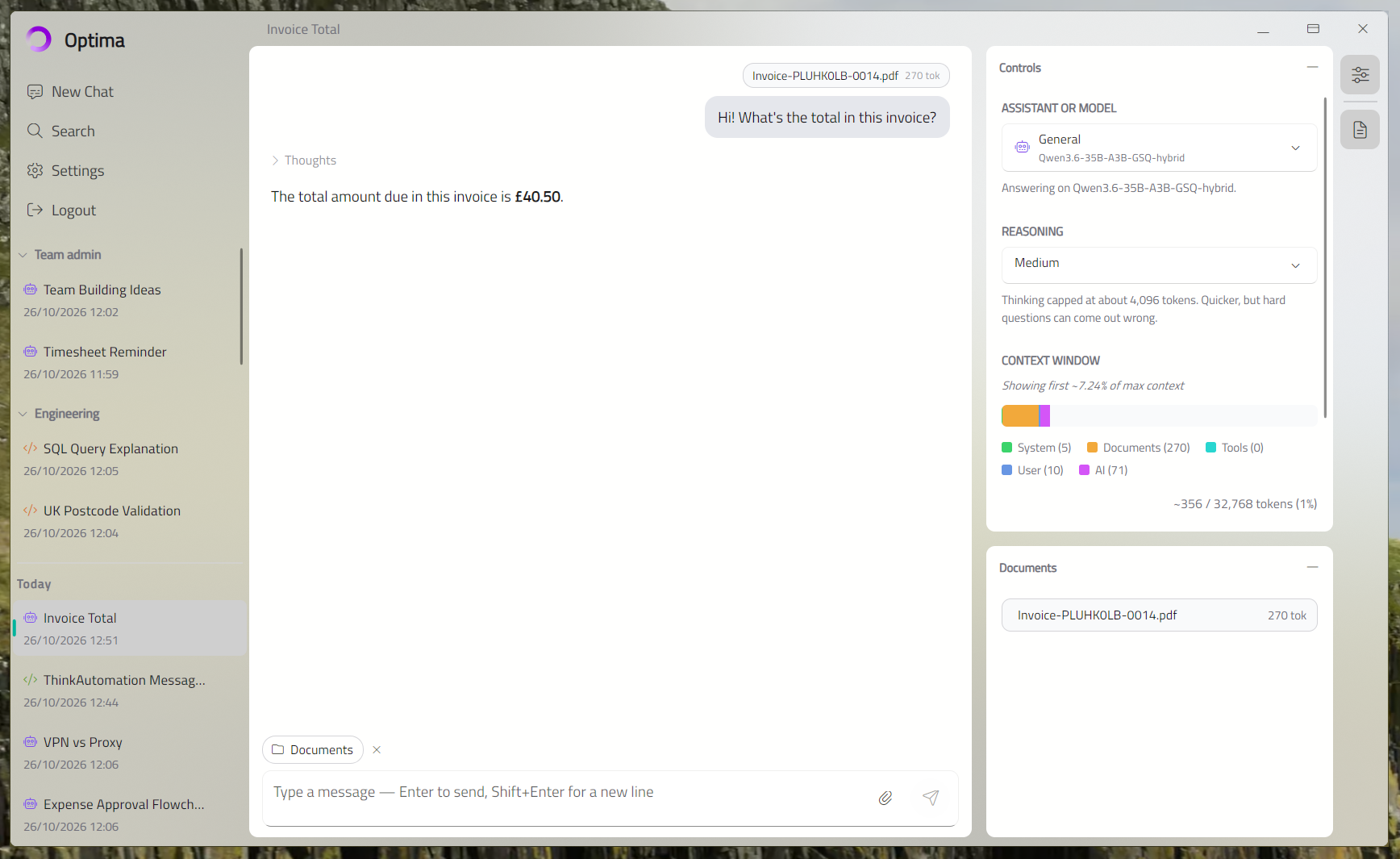
To see every document you have sent in the current conversation, open the Documents card from the icons on the right-hand edge. On a phone, drag up the bar above the message box and choose Documents.
Images
Not every model can see images. If the one you are using cannot, an image chip will show not supported, the message This model doesn't support this file type will appear, and you will not be able to send until you remove it. Start a new chat with a model or Assistant that accepts images.
Before an image is stored, Optima resizes very large pictures and saves a fresh copy. The copy does not carry the original's hidden details, such as where a photo was taken.
Note
HEIC photos — the format iPhones use — are converted automatically on iPhone, iPad and Mac. On other devices, save the photo as a JPEG first.
Who Can See Your Attachments
Attachments are stored with the conversation, on your Optima server, and will be deleted when you delete the conversation. Like the conversation itself, they are visible only to you.