Knowledge Bases
A Knowledge Base is a collection of your organisation's documents — policies, manuals, product information — that AI models can search by meaning. When someone asks a question, the model will find the relevant passages and answer from them, rather than from what it learned in training. You can create a Knowledge Base for each subject or department, and choose who can search each one.
Knowledge Bases are managed on the Knowledge page, from the menu.
Before You Start: An Embedding Model
Searching by meaning needs an embedding model running on one of your Nodes — a small model that turns text into something searchable. Without one connected, you cannot create a Knowledge Base or add documents.
Every Node includes Optima Built-in Embeddings, a small embedding model that runs on the CPU. You can start it to get going. A dedicated embedding model, downloaded to a Node, will give better results. See Managing Models.
Note
Each Knowledge Base is indexed with one embedding model. You can switch to a better one later by rebuilding the index.
Who Can Do What
Two permissions decide what you can do with Knowledge Bases:
| Permission | What it allows |
|---|---|
| Knowledge Base | Open the Knowledge page, create Knowledge Bases, and manage the ones shared with them |
| KB Admin | Reach and manage every Knowledge Base. Administrators cannot be removed from a Knowledge Base's access list |
Creating A Knowledge Base
- On the Knowledge page, click New Knowledge Base.
- Enter a Name and a Description.
- Choose an Embedding model.
- Click Create.
Write the description for the AI. Models read it to decide whether to search this Knowledge Base, so say what is in it and what questions it answers. For example, "Leave, expenses, onboarding and conduct policies for UK staff."
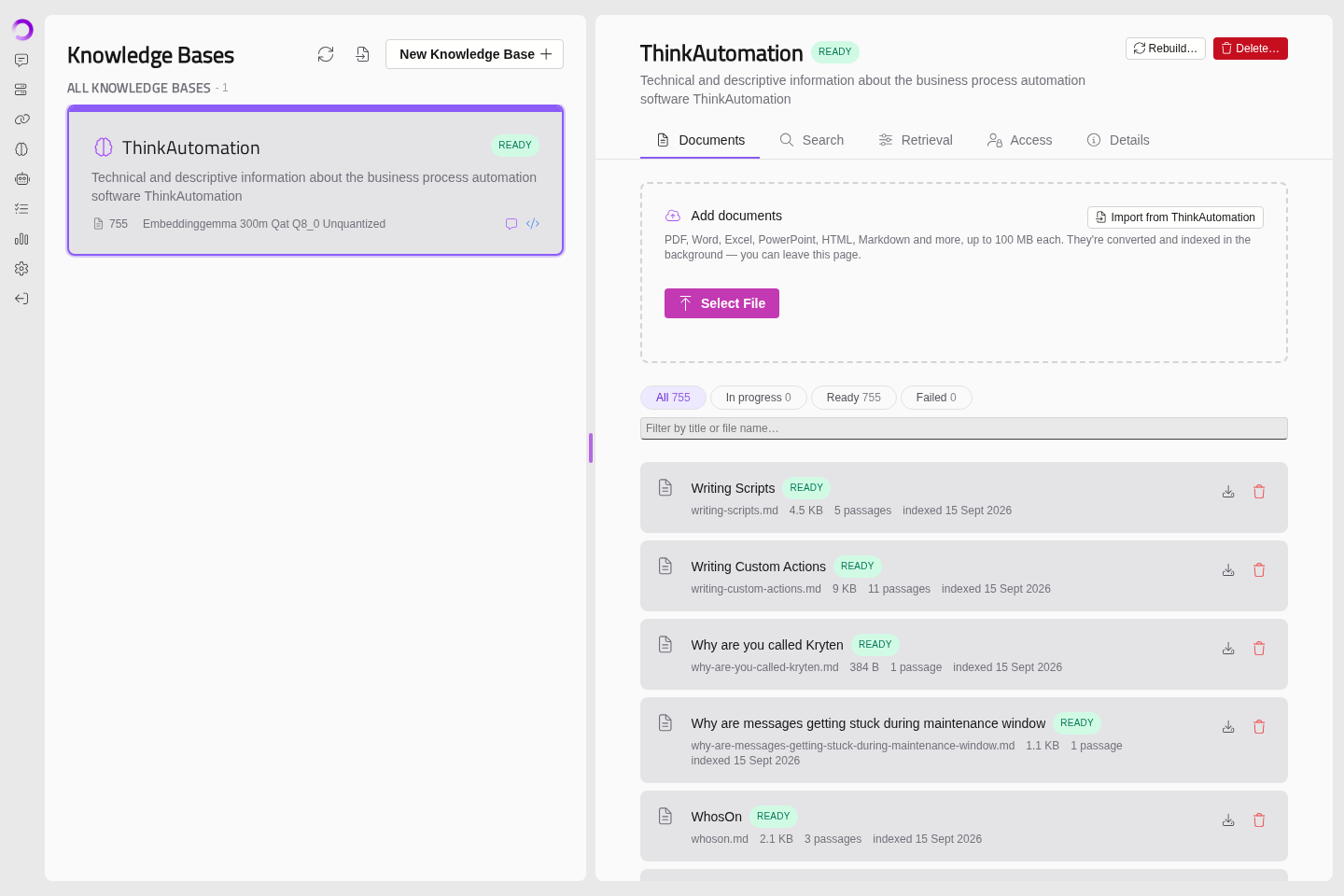
Select a Knowledge Base on the left to work with it. It has five tabs: Documents, Search, Retrieval, Access and Details.
Documents
The Documents tab lists the documents in the Knowledge Base. Click Add documents to upload files. PDF, Word, Excel, PowerPoint, HTML, Markdown and other common formats are accepted. The page shows the size limit for each file.
Each document will be converted to text, split into passages and indexed in the background. You can leave the page while this happens. Each document shows its progress, and one that fails can be retried.
To remove a document, delete it from the list. Its passages will stop being found straight away, and the stored file will be deleted.
Importing From ThinkAutomation
To bring in a Knowledge Base exported from ThinkAutomation, click the import icon at the top of the page (or Import from ThinkAutomation on the Documents tab), then choose the .json export. Each article will become a document.
Choose whether to import into A new knowledge base or An existing one. For articles whose title is already there, you can choose to replace them with the new version, keep both (the new one is given a numbered title, such as Pricing (2)), or skip them. Documents you uploaded yourself are never changed.
Search
The Search tab lets you try searching the Knowledge Base the way a model would. You can use it to check that a document was picked up, and to see how closely passages match.
- By meaning finds passages about the same thing, even in different words.
- Exact terms finds passages containing particular words. Separate terms with commas. A term of several words is matched as a phrase.
Results show each passage's score. Tick Show all scores to include passages below the match threshold — this is useful when choosing thresholds.
Retrieval
The Retrieval tab sets how models use this Knowledge Base.
| Setting | What it does |
|---|---|
| Enabled | When off, no model can search this Knowledge Base, whatever the other switches say. You can still manage it |
| Available in chat | Models in Optima Chat can search it, for people who have access to it |
| Available to the API | Models called through the API can search it, for API Keys that have access to it |
| Allow in auto-inject | Its best passages can be added to messages automatically. Turn off for a large or loosely related Knowledge Base |
Thresholds — how closely a passage must match:
- Match threshold — passages scoring below this are discarded.
- Auto-inject threshold — passages scoring below this are not added to messages automatically.
Leave them empty to use the defaults. Scores differ between embedding models, so set these only when this Knowledge Base needs different values — and check them on the Search tab.
How Models Use A Knowledge Base
There are two ways a model can draw on a Knowledge Base:
- By searching. The model is given search tools and decides when to use them, based on each Knowledge Base's description.
- By auto-inject. Before the model answers, Optima searches for passages matching the message and adds the closest ones. This is switched on per Assistant — see Assistants.
Access
The Access tab sets who can use this Knowledge Base.
Give access — search for people and Service Keys and add them. Who has access lists them. People on the list who also have the Knowledge Base permission can manage it too.
Used by assistants lists the Assistants that search it. Everyone who can use those Assistants can search the Knowledge Base through them, without being given access themselves.
Warning
Anyone holding an API Key with access can read this Knowledge Base through a model.
Details
The Details tab shows the name and description, and facts about the index: the embedding model it was built with, and how many documents and passages it holds.
Rebuilding The Index
You can re-index every document in a Knowledge Base — for example, to switch to a different embedding model. Click Rebuild… in the Knowledge Base's header.
| Setting | What it does |
|---|---|
| Embedding model | The model to build the new index with |
| Passage size | Tokens per passage (default 400). Smaller passages match more precisely, but give a model less context each |
| Passage overlap | Under Advanced. Tokens repeated between neighbouring passages, so a sentence split across two is still found |
Click Start rebuild. Search will keep using the current index until the new one is ready. If the rebuild fails, the current index will be left as it was.
Note
After switching embedding model, scores change. Check the thresholds on the Search tab.
Deleting A Knowledge Base
Click Delete… in the Knowledge Base's header and confirm.
Warning
This permanently deletes the Knowledge Base and its documents.
Settings For Every Knowledge Base
Settings → AI → Knowledge Base sets defaults for all Knowledge Bases:
| Setting | What it does |
|---|---|
| Available on | Chat and API switches for the search tools, and separate Chat and API switches for auto-inject |
| Passages per message | How many passages auto-inject adds to a message (1–10) |
| Primary match threshold default | The default Match threshold |
| Auto-inject match threshold default | The default Auto-inject threshold |
| Model thresholds | Click Set per model to set different defaults for each embedding model |