Managing Models
Models are managed per Node, in the Node's Executors panel. An Executor is the process a Node runs to serve a particular model — each model you start gets its own. From the panel you can download new models, start and stop them, change their settings and delete them.
To reach it, open the Nodes page, click the edit icon on a Node, and look at the Executors panel on the right. You will need the Executors permission to download, start, stop or change models.
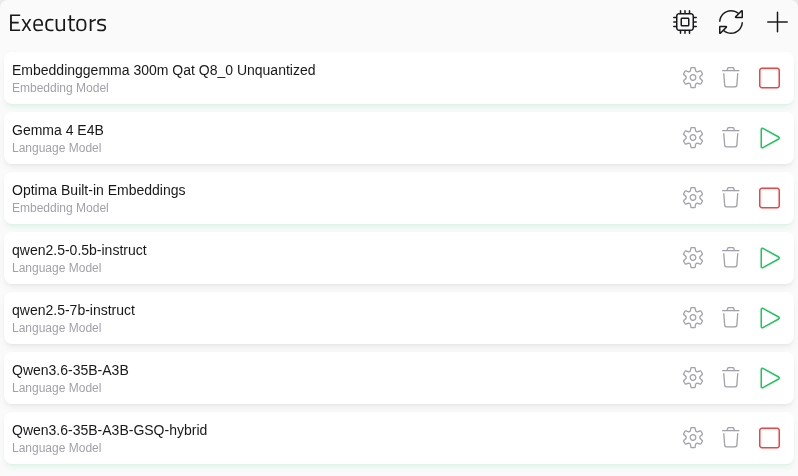
The Executors Panel
The icons at the top of the panel:
| Icon | What it does |
|---|---|
| Download | Shows downloads in progress. Only appears while something is downloading |
| Chip | Manage llama backends — install and update the software that runs models. Says Update available when there is one. See Hardware and GPU |
| Arrows | Refresh executor discovery — look for new model files now |
| + | Install new executors — download models from Hugging Face |
Each model in the list shows its name and type. There are two types: a Language Model is a chat model, used for conversations, Assistants, Scheduled Tasks and API completions. An Embedding Model turns text into vectors for searching by meaning, and is used by Knowledge Bases, AI memory and API embeddings.
Every Node also has Optima Built-in Embeddings, a small embedding model that runs on the CPU. It is enough to try out Knowledge Bases; a dedicated embedding model gives better results.
Executor Status
Each model shows its current status:
| Status | Meaning |
|---|---|
| Online | The model is loaded and answering requests |
| Starting | The model is loading. Large models can take several minutes |
| Offline | The model is stopped |
| Stopping | The model is shutting down |
| Crashed | The model failed and could not be restarted. Point at the badge to see why. See Executors |
Other badges you may see:
| Badge | Meaning |
|---|---|
| Restart to apply | Its settings have changed. They take effect the next time it starts |
| Backend not installed (or installing, failed) | The software that runs it is not ready. See Backends |
| 2 of 2 instances running | It runs as several instances. See Hardware and GPU |
Starting And Stopping A Model
Click the play button to start a model, and the stop button to stop it. Stopping a model will free its memory and VRAM for other models.
A model that is running when the Node shuts down will start again by itself when the Node restarts.
Note
If a model's backend is not installed, it cannot start. Install it from Manage llama backends first.
Downloading A Model
Click + to open Install Executors, which searches Hugging Face — the main public library of AI models.
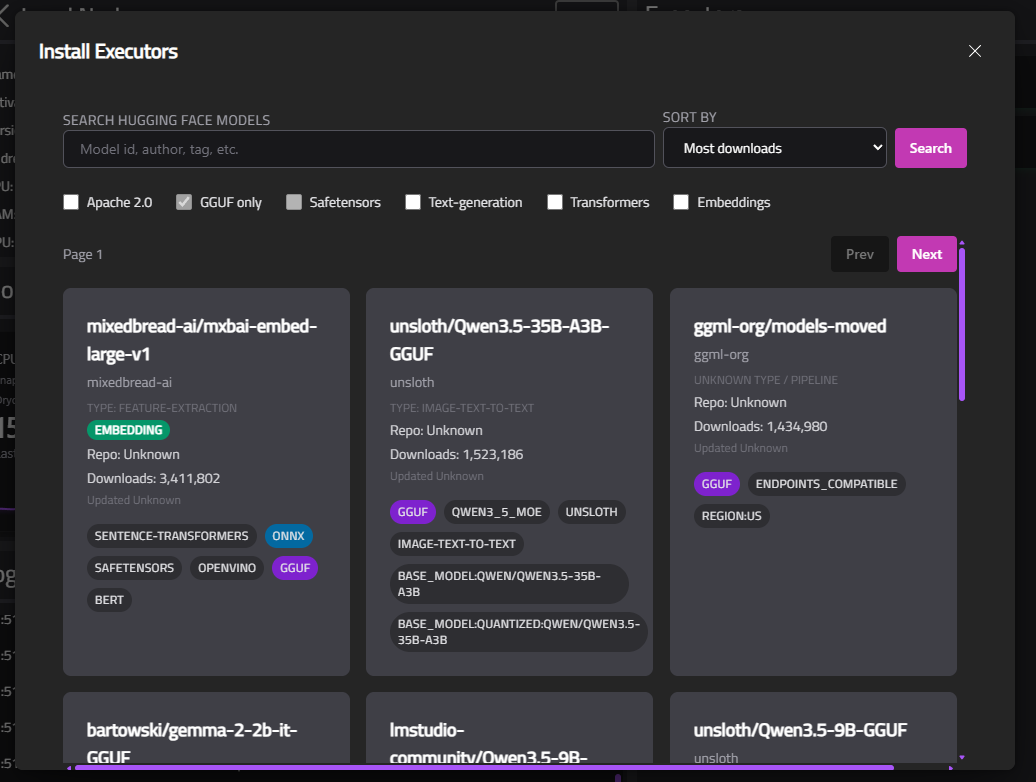
- Type in Search Hugging Face Models — a model name, author or tag — and choose a Sort By order. Click Search.
- Narrow the results with the filters, if you need to. Tick Embeddings to find embedding models.
- Click a model to see its details and its Files.
- Click Download beside the file you want.
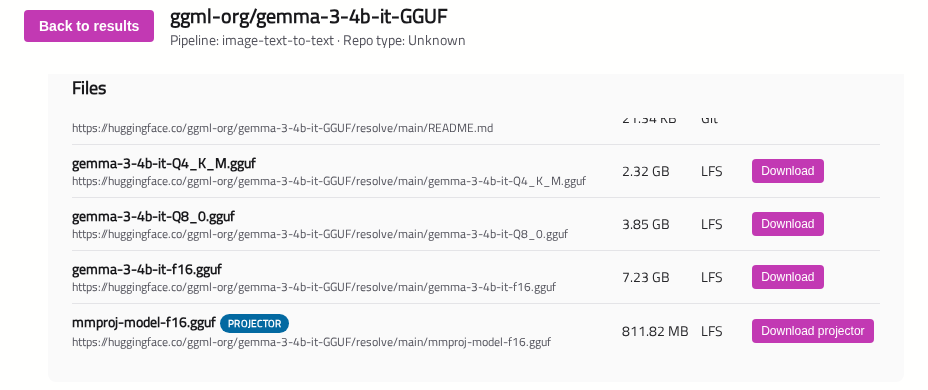
Choosing A File
Most models come in several sizes, called quantisations — for example Q4_K_M, Q5_K_M and Q8_0. Smaller files need less memory and run faster, at a small cost in quality. Q4_K_M or Q5_K_M is a good starting point. See Hardware and GPU for how much memory each size needs.
- Split models. Very large models come in several parts. Click Download (N files) on the first part to download them all.
- Models that can read images. If a model can read images, its repository also has a projector file. When you download the model, Optima will offer Download with image support, which downloads both into one folder so they are paired automatically. To add image support to a model you already have, click Download projector on the projector file.
Download Progress
Downloads continue in the background, so you can close the window. Click the download icon in the Executors panel to see their progress again.
When a download finishes, the model will appear in the list, stopped. Start it, and check its settings first if you want to — see Executor Settings.
Changing A Model's Settings
Click the gear icon on a model to open its settings — context window, sampling, GPU use and more. Optima also shows how much memory the model will need with those settings before you start it. See Executor Settings.
Deleting A Model
Click the trash icon and confirm. A running model will be stopped first. Tick Also delete model file from disk to remove the file as well; otherwise the model will reappear the next time the Node looks for model files.
Adding Model Files By Hand
You can also copy .gguf files straight into the Node's models folder. See Model Discovery.