Executor Settings
Each model has its own settings: how much it can remember, how it chooses its words, and how it uses the hardware. You can change them to suit the model, the machine and the way the model will be used. To change them, click the gear icon on the model in the Node's Executors panel. You will need the Executors permission.
The settings window has two columns. On the left are the model's behaviour settings. On the right, for language models, are Hardware and Memory — how the model uses the machine, and how much memory it would need.

Click Save to apply. Saving while the model is running will restart it with the new settings. Saving while it is stopped will mark it Restart to apply.
Note
A setting is only shown if the Node and model support it. Embedding models have only the context window and hardware settings. Point at a setting's name for a description.
Context
Context Window sets how many tokens the model can hold at once — its working memory for each request. Optima first sets this from the machine's memory. You can raise it up to the model's own maximum, if the hardware has room: a bigger window needs more memory. The minimum is 512.
The context window is what Optima Chat's context bar and every limit in Optima work from. See Context Window.
Decoding
The decoding settings control how the model chooses each word. These are defaults: an Assistant or an API request that sets its own value takes precedence.
| Setting | What it does |
|---|---|
| Temperature | Randomness, 0–2. Lower is steadier and more literal; higher is more varied |
| Top P | Considers only the most likely words that together make up this share of the probability |
| Top K | Considers only this many of the most likely words. 0 = off |
| Min P | Ignores words less likely than this fraction of the most likely one |
| Typical P | Another way of trimming unlikely words. 1.0 = off |
| Repetition Penalty | Discourages repeating the same words. 1 = off |
| Presence Penalty | Discourages returning to words already used, from -2 to 2 |
| Frequency Penalty | Discourages words in proportion to how often they have appeared, from -2 to 2 |
| Mirostat | An alternative way of controlling randomness: 0 – Disabled, 1 – Mirostat, 2 – Mirostat 2.0. When on, Mirostat Tau and Mirostat Eta appear |
If you are unsure, leave these alone. The values set when the model was found suit most models.
Output
The output settings control the length and form of each answer.
| Setting | What it does |
|---|---|
| Max Tokens | The most the model may write in one answer |
| Seed | Fixes the randomness, so the same request gives the same answer. -1 = random |
| JSON Mode | Forces the model to answer in JSON |
| Stop Sequences | Text that ends an answer when the model writes it, one per line |
| Grammar (GBNF) | A formal grammar the answer must follow, for advanced uses |
Behaviour
Disable Thinking Mode stops models that think before answering (such as Qwen3) from doing so. Answers will come sooner, but hard questions are more likely to go wrong.
Hardware
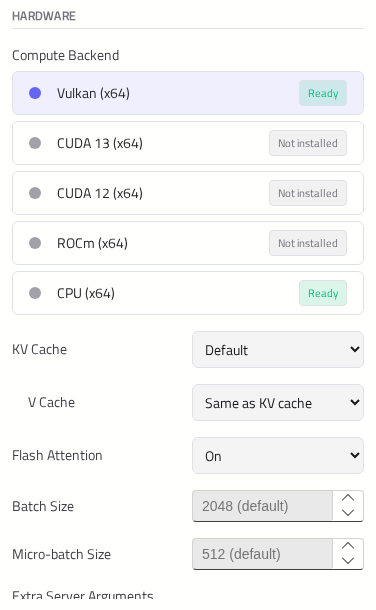
The hardware settings control how a model uses the Node's GPUs, memory and backends. They are only shown for language models.
| Setting | What it does |
|---|---|
| Compute Backend | Which build of llama.cpp runs the model — for example Vulkan, CUDA or ROCm. Each shows whether it is installed and ready. See Backends |
| KV Cache | How precisely the model stores the conversation it is working on. Default and F16 are full size. Q8_0 takes about half the memory, Q4_0 about a quarter — letting you fit a longer context window, at a small cost in quality |
| V Cache | The same for the second half of the cache. Same as KV cache unless you have a reason |
| Flash Attention | A faster, leaner way of computing attention. On (default), Auto or Off. A compressed V Cache needs it on |
| Batch Size / Micro-batch Size | How much of a prompt is processed at once. Leave blank for the defaults (2048 and 512) |
| Speculative Decoding | Only shown for models with a built-in prediction head. MTP (built-in head) guesses several words ahead and checks them, which can speed answers up. Draft Tokens sets how far ahead. Measure before leaving it on — on some machines it is slower |
| Image Input (Projector) | Only shown when a projector that fits the model is on the Node. Lets the model read images. See Image input |
| Extra Server Arguments | For experts: extra llama.cpp options. See Extra server arguments |
| Requests at Once | How many requests the model answers at the same time. See Hardware and GPU |
| Instances | Run the model as several copies, each on its own GPU. Only shown on machines with two or more GPUs. See Hardware and GPU |
| Tensor Split | How to share one copy of the model across several GPUs. See Hardware and GPU |
Image Input
A language model reads images only when a projector file is loaded beside it. The Node pairs a projector with its model automatically when they are in the same folder and clearly belong together. Image Input (Projector) shows what the model currently accepts, and lets you choose:
- Automatic — use the projector the Node paired, if any.
- A particular projector file on the Node — when the Node found several, or none in the model's own folder.
- Off — text only — saves the projector's memory.
The most direct way to get a projector is to download the model with Download with image support. See Managing Models.
Extra Server Arguments
You can pass extra options to llama.cpp, written as on a command line — for example --mlock --threads 16. Each one will be checked as you type:
- Options that would break Optima — such as
--port,--host,--api-key,--ctx-sizeor--parallel— will not be passed, and Optima will say which setting to use instead. - Options that duplicate a setting in this window will be passed, and will override it. Optima will warn you and name the setting.
Memory
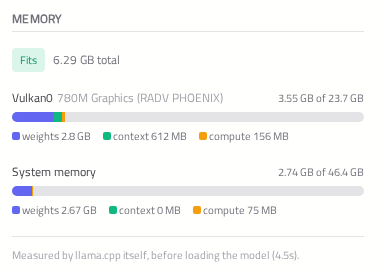
Optima asks the Node how much memory the model would use with the settings as they are, before you save. This lets you check that a model will fit before you start it. The estimate comes from llama.cpp itself, and updates shortly after each change.
| Verdict | Meaning |
|---|---|
| Fits | The model fits in GPU memory as it is |
| Fits, reduced | It fits, but llama.cpp would move part of the model off the GPU to make it fit — the estimate lists what. It will run, more slowly |
| Does not fit | It will not load. Lower the context window, or store the KV cache at a lower precision |
| Unknown | The Node could not estimate it |
Each GPU, and the machine's System memory, is shown as a bar divided into the model's weights, its context, and working space.
Note
The estimate is against the memory free right now. If the model is already running, its own memory counts against it.