MCP Tools, Access And Certificates
Once an MCP Connector is added, you can change how it works from its window. Click Configure on the Connector's card to open it. The window has four tabs: Details, Sign-in, Tools and Access. When something needs fixing, a banner above the tabs will say what, with Try it now to check again.
Signing in is covered in Signing In to MCP Connectors.
Details
The Details tab holds the Connector's name, address and general settings:
| Setting | What it does |
|---|---|
| Name | What the Connector is called on the Gateway and in Optima Chat |
| Address | The server's MCP address. Changing it to a different server removes the stored credential — see Changing the address |
| Offer its tools in chat | Its tools are available in Optima Chat |
| Offer its tools to API callers | Its tools are available to API requests and Scheduled Tasks |
| Keep tools this server adds later switched off until I turn them on | When the server starts offering a new tool, it arrives switched off on the Tools tab |
| How long one tool call may run | Tick Use the gateway's default to use the Gateway's Default timeout, or set a number of seconds. 0 means no deadline, which applies only in chat, where someone can press Stop |
Click Save details.
The AI sees each tool's name prefixed with a short name for the server, shown on this tab, so that tools from different servers never clash. It is fixed when the server is added.
Note
A server can add or change its tools at any time. Keep tools this server adds later switched off means a new tool is never offered until someone has looked at it.
Tools
The Tools tab lists what the server offers, with a switch for each tool, its description, and roughly how many tokens its description costs on every request that offers it.
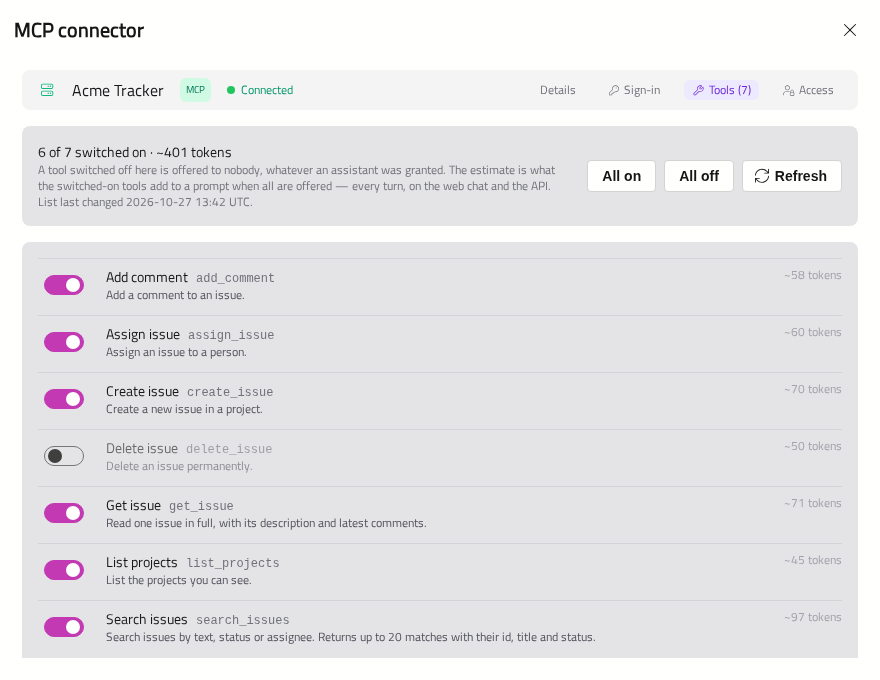
A tool switched off here is offered to nobody, whatever an Assistant was granted. You can switch off tools you do not want used — for example, ones that delete or send — and tools that only cost tokens.
- All on and All off switch every tool.
- Refresh asks the server for its current list.
Optima remembers each server's last list of tools, so a server that is briefly unreachable does not change what the AI is offered.
Access
The Access tab decides who can use the Connector outside Assistants — when they chat with a model directly, or call the API without an Assistant. It applies to Connectors that sign in with a token, custom headers or one organisation account, because everyone who uses them acts as the same account.
Connectors with no credential, or where each person signs in with their own account, are available to everyone. Each person reaches only what their own account allows.
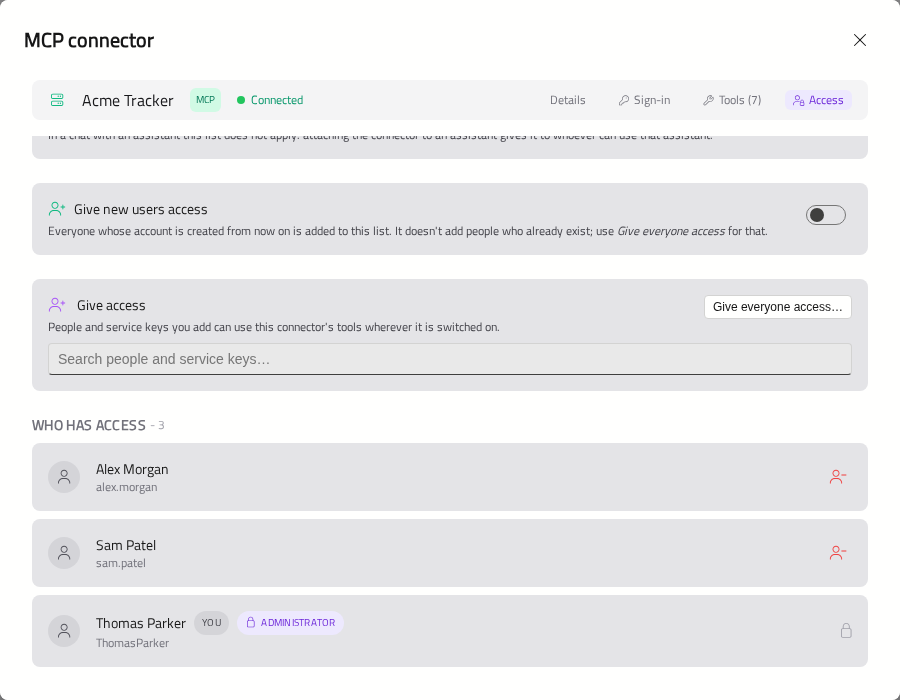
The tab has the following parts:
- Give access — search for people and Service Keys, and click Give access beside each. Give everyone access… adds every current user; Service Keys are not included.
- Who has access — click Remove access to take someone off.
- Give new users access — adds everyone whose account is created from now on.
People with the MCP Connectors permission can use every MCP Connector, and are marked Administrator on every list.
The tab also lists the Assistants that have the Connector. Everyone who can use those Assistants can use the Connector through them, whether or not they are on this list. People on the list can use it in their Scheduled Tasks too.
Note
When MCP access lists arrived, every existing user was given access to each server that already had a key, so nothing stopped working. A server given a key later starts with an empty list.
Certificates
Optima checks every MCP server's certificate. A server on the public internet normally has one Optima trusts already.
A server on your own network may use a private certificate. When Optima cannot trust it, the window will show the certificate — Issued to, Issued by, the dates it is valid, and its SHA-256 fingerprint — and Trust this certificate.
Check the fingerprint with whoever runs the server before you trust it. Optima will then accept that one certificate from that server, and no other. When the server's certificate is renewed, you will be asked again.
The Details tab shows a trusted certificate, with Stop trusting it.
Servers that sign in with OAuth must have a certificate Optima trusts already. They cannot use a trusted private certificate.