HubSpot
The HubSpot Connector lets the AI find and create records in your HubSpot CRM, and work with your inbox conversations. It signs in to HubSpot with a HubSpot service key, which you create in HubSpot and paste into Optima.
| Runs on | Server: available in desktop chat, web chat and the API |
| Sign-in | API key: a HubSpot service key |
| Acts as | The service key. Everyone who can use this Connector uses the same key; see Who can use it |
What It Can Do
The Connector's tools cover the following areas of HubSpot:
| Area | Tools |
|---|---|
| Contacts | Find a contact by name or email, create a contact, list contact properties, log an internal note on a contact |
| Companies | Find a company by name or domain, create a company |
| Deals | List deal pipelines and stages, create a deal |
| Tickets | Create a support ticket |
| Conversations | List inbox threads, read a thread's messages, reply, post an internal comment |
Reply sends a message the customer will see. You can require permission before it is used. See Assistants.
Before You Start
You need to be a Super Admin in HubSpot, or have the Developer tools access permission. A service key can only be given scopes that you have yourself. To check your permissions, see HubSpot's user permissions guide.
If you already use this Connector with a private app access token, it will keep working, and you do not need to change it. HubSpot is replacing private apps with service keys, so new setups use a service key.
At HubSpot: Create A Service Key
A HubSpot service key gives the Connector access to your HubSpot account, limited to the scopes you choose. Create one as follows:
-
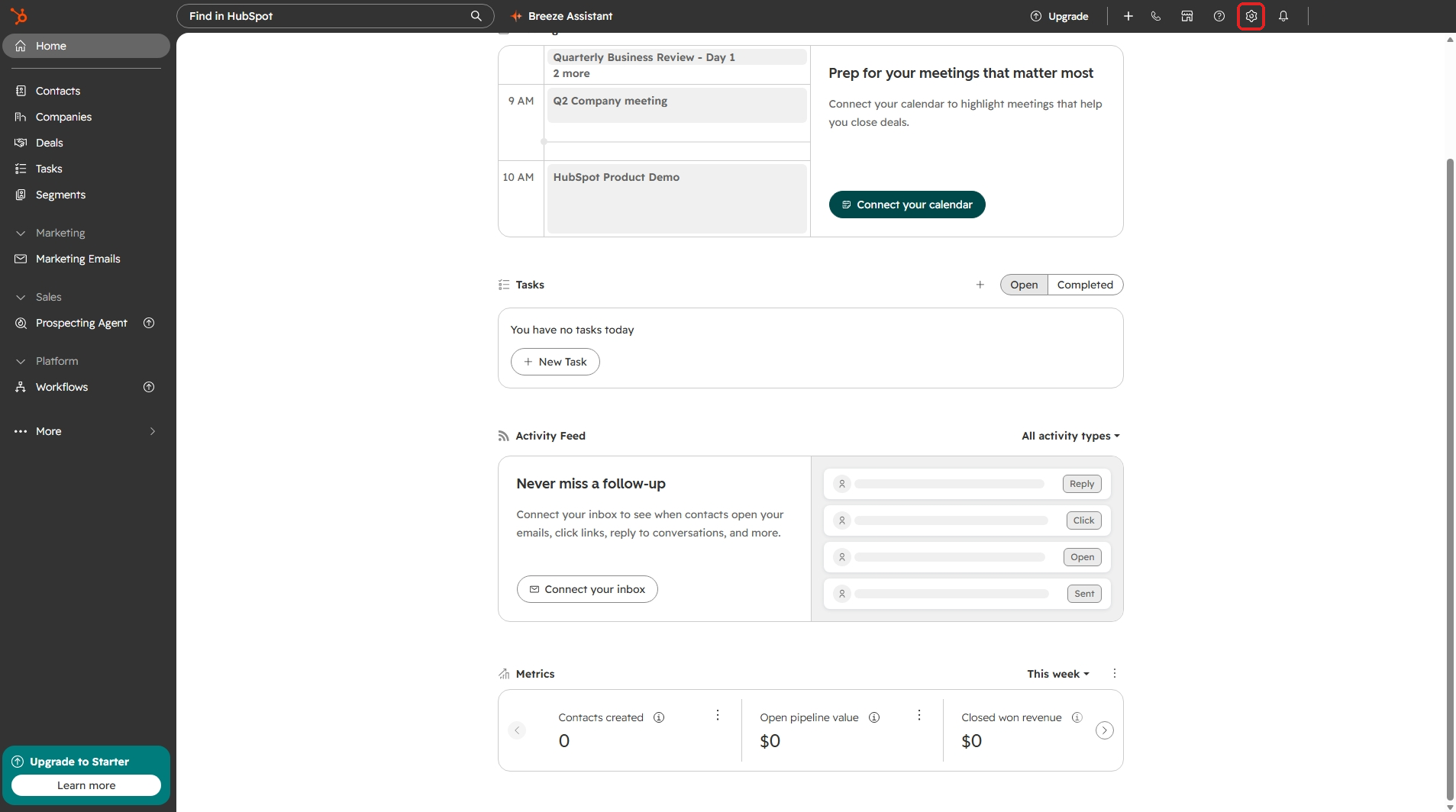
In HubSpot, click the Settings gear in the top bar, or open HubSpot's settings directly.
-
In the left menu, under Integrations, click Service Keys.
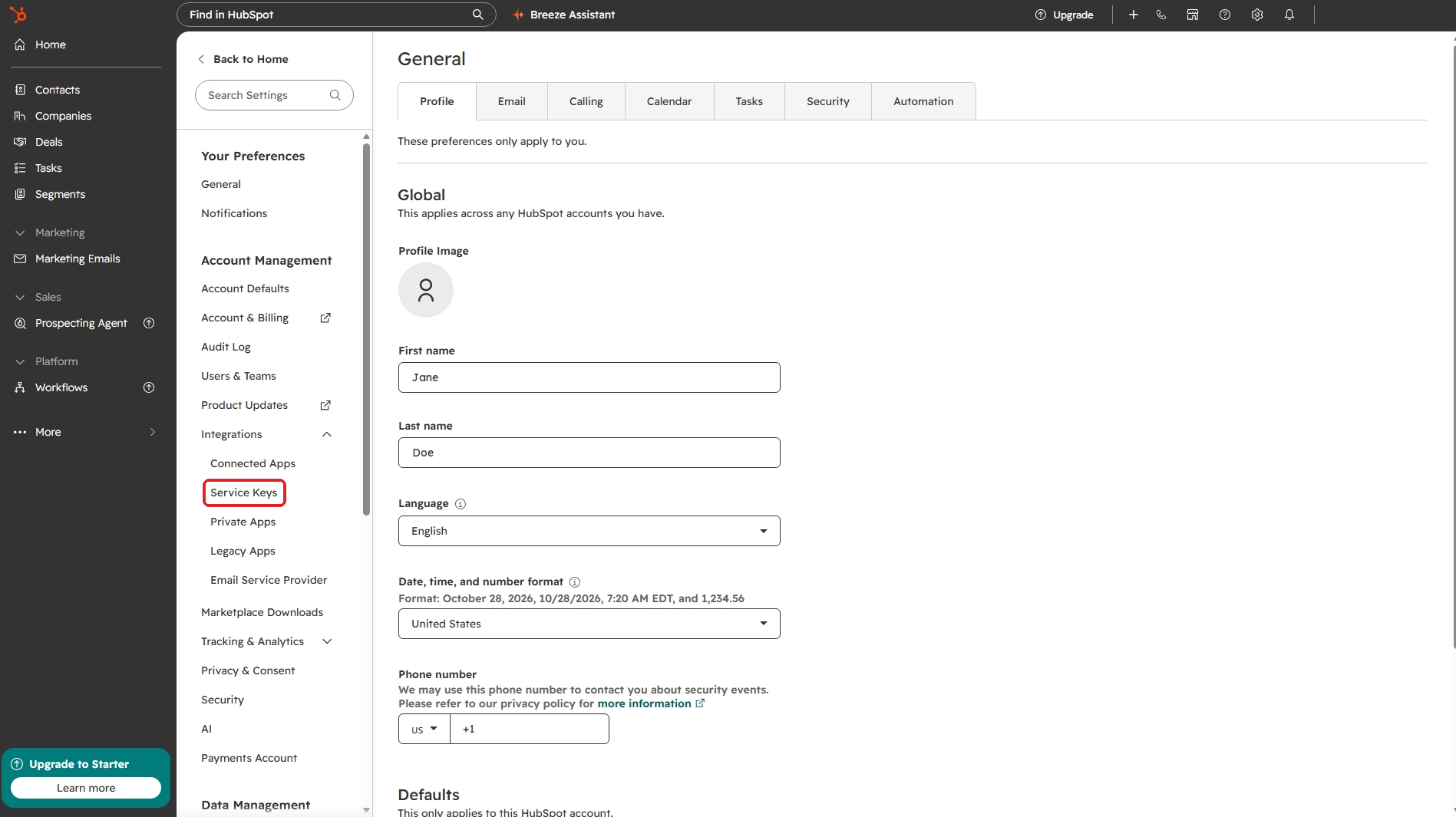
In some accounts, service keys are under Development → Keys → Service Keys instead.
-
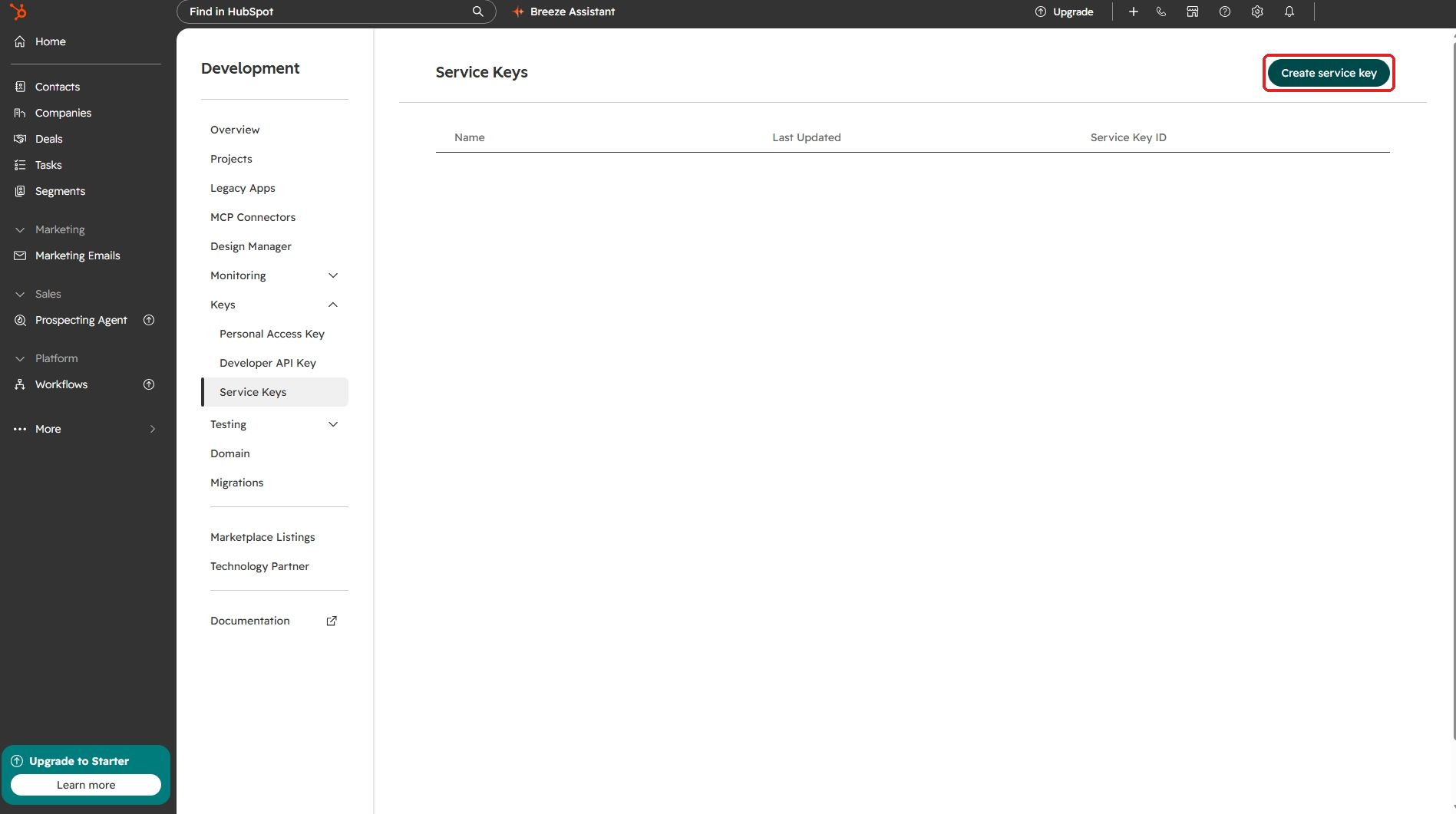
Click Create service key.
-
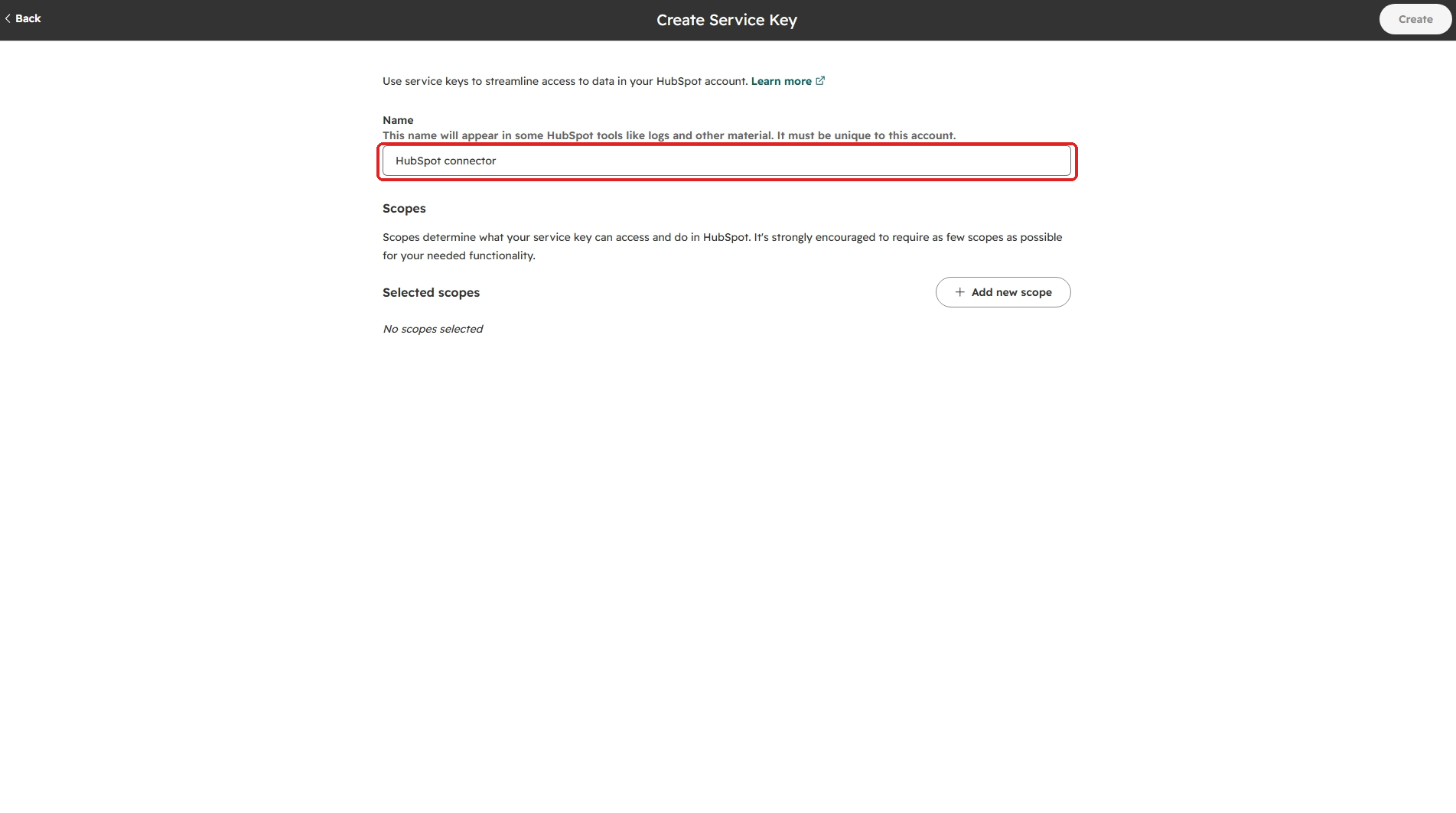
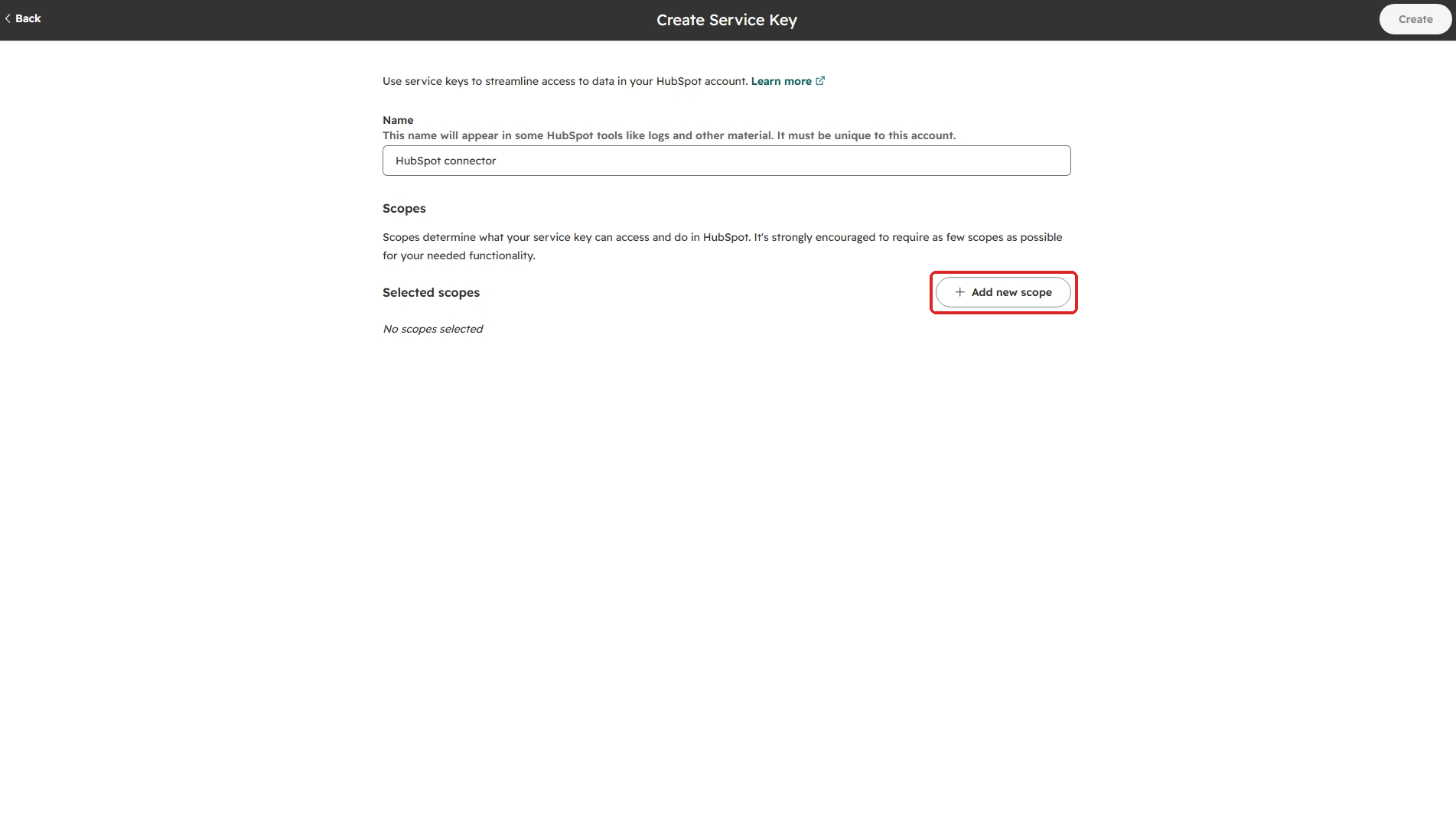
Under Name, enter a name for the key — for example, HubSpot connector. It must be unique in your HubSpot account.
-
Click Add new scope and add the scopes listed under Scopes. Each scope is a separate item, so add them one at a time.
-
Click Create.
-
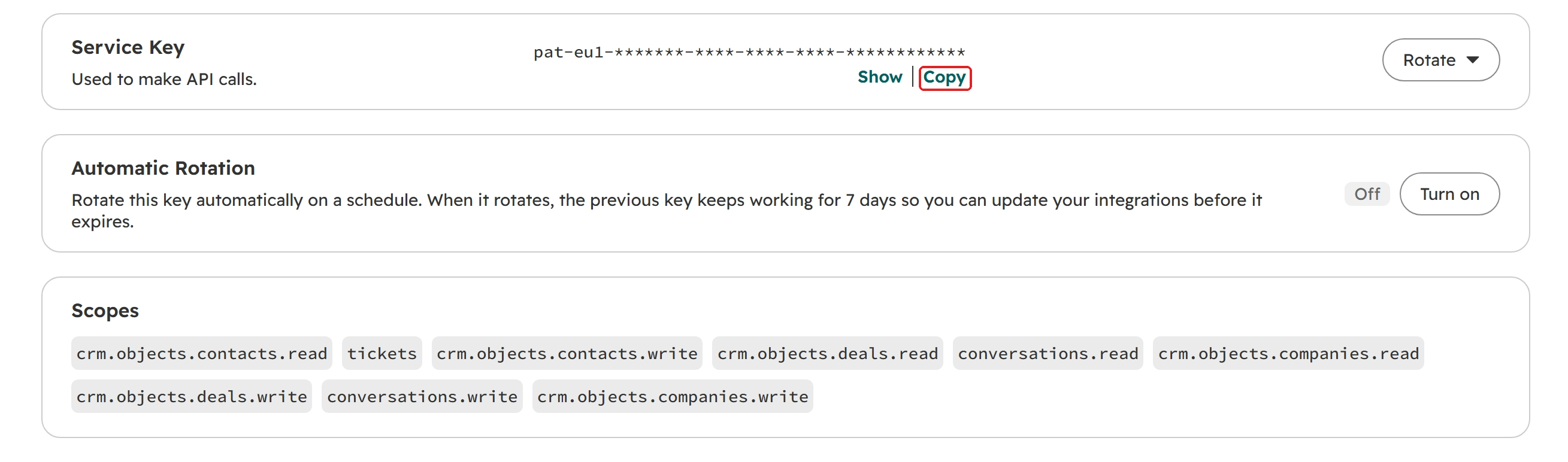
On the key's page, click Copy to copy the key. You can come back to this page to copy it again.
For more about service keys, see HubSpot's service keys documentation.
Scopes
These are the scopes version 1.0.0 of the HubSpot Connector needs. Add all of them, and nothing else: the Connector uses every one, and does not need any others.
| Scope | Used for |
|---|---|
crm.objects.contacts.read |
Finding contacts by name or email, listing contact properties |
crm.objects.contacts.write |
Creating contacts |
crm.objects.companies.read |
Finding companies by name or domain |
crm.objects.companies.write |
Creating companies |
crm.objects.deals.read |
Listing deal pipelines and stages |
crm.objects.deals.write |
Creating deals |
tickets |
Creating tickets |
conversations.read |
Listing inbox threads and reading their messages |
conversations.write |
Replying, and posting internal comments |
Logging a note on a contact needs no scope of its own. Once the key is created, its page will list each scope separately:
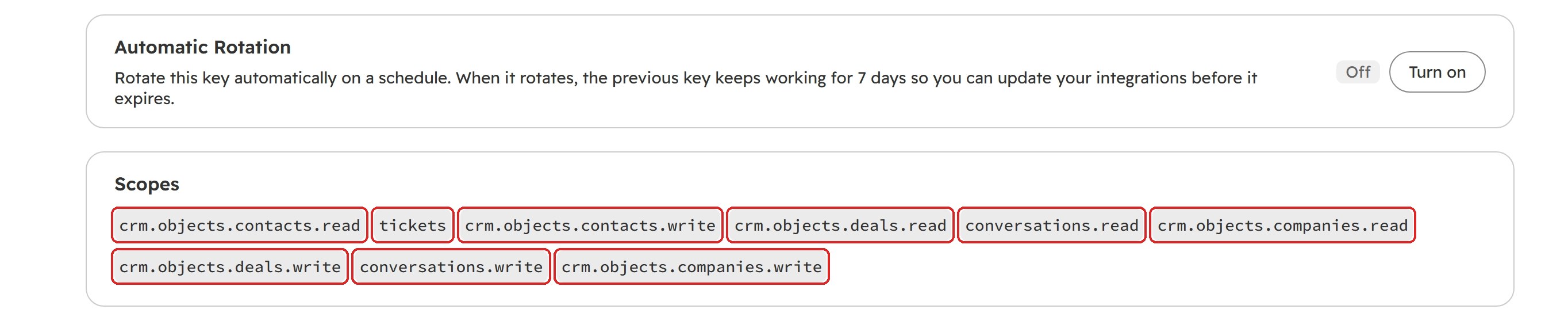
If HubSpot offers crm.objects.tickets.read and crm.objects.tickets.write instead of tickets, add both.
To keep the Connector read-only, leave out the four .write scopes and tickets. The tools that create records, reply or comment will then fail, and the others will keep working.
HubSpot describes every scope in its scopes reference.
In Optima
Once you have the key, install the Connector on the Gateway and paste the key in:
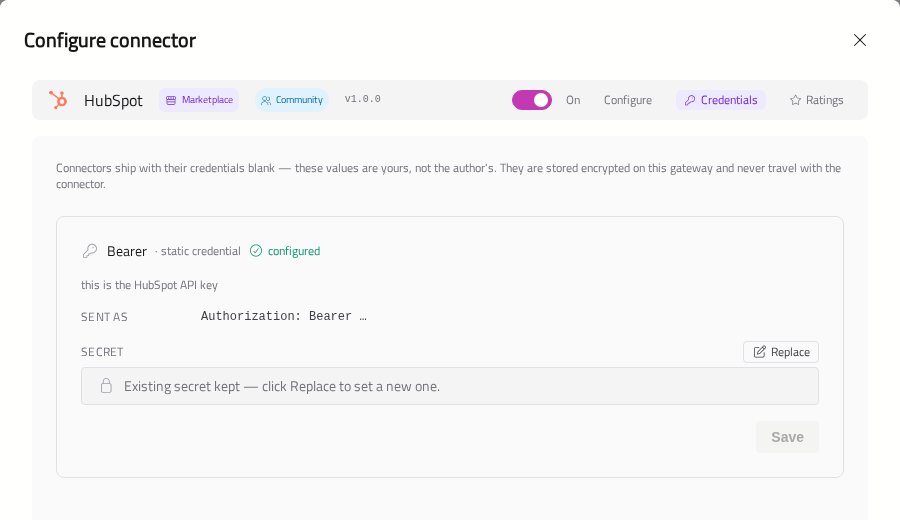
- Open Connectors, find HubSpot under Available, click its card, and click Install. The Configure window will open on the Credentials tab.
- Paste the service key into Secret and click Save.
The credential will show configured.
Check It Works
In a chat with the HubSpot Connector available, ask a question that needs it. For example:
"Find the contact jane@example.com in HubSpot."
Troubleshooting
If a HubSpot tool fails, HubSpot's answer will usually say why.
If HubSpot answers 401 Unauthorized, the key was copied incorrectly, or it has been rotated or deleted. Copy it again from the service key's page in HubSpot. In Optima, click Replace on the credential, paste the key and click Save.
If HubSpot answers 403 Forbidden, the service key is missing a scope. HubSpot's error names the scope it needs. Add that scope to the service key in HubSpot.