Adding An MCP Connector
An MCP Connector gives the AI the tools of an MCP server — a service that speaks the Model Context Protocol, usually run by another company. Many services offer one, such as issue trackers, documentation sites and CRMs. The server runs its own tools: Optima only sends it the AI's requests and passes back the answers.
You will need the MCP Connectors permission. MCP Connectors must also be allowed for the Gateway, with Allow MCP connectors in Settings → AI. This is on by default. See Settings.
Warning
What the AI sends goes to whoever runs the server. When a model uses an MCP Connector's tool, the tool's arguments — which may include parts of the conversation — go to that server. Add servers from publishers you trust.
Optima connects to MCP servers over HTTPS. It does not run MCP servers itself, so servers that are only offered as a program to install locally cannot be added.
Finding A Server In The Directory
On the Connectors page, open the MCP Connectors tab. The Directory lists MCP servers from GitHub's MCP registry.
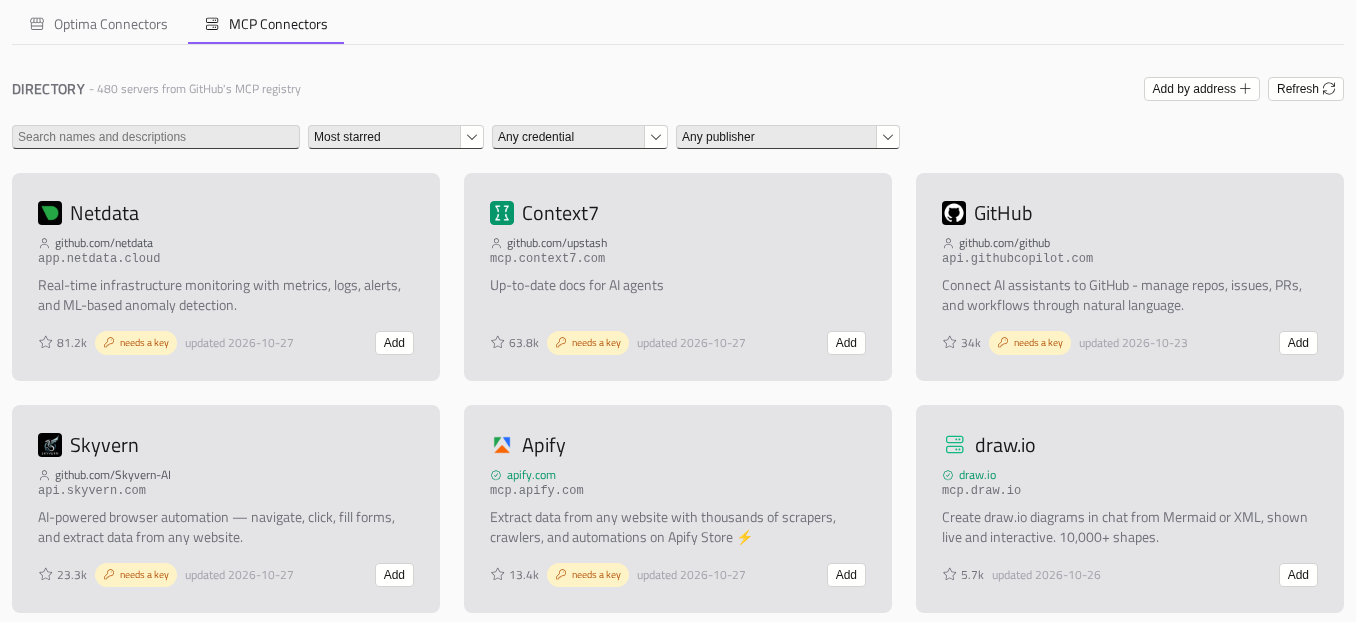
You can narrow and order the list in the following ways:
- Search names and descriptions filters what is listed. Nothing you type is sent anywhere.
- Sort by Most starred, Recommended first, Recently updated, Newest or A to Z. Stars are the server's code repository's, not a measure of how much it is used.
- Any credential narrows the list to servers that Say it needs a key or Declare none.
- Any publisher narrows it to servers On the publisher's own domain.
Each card leads with the publisher and the server's address. Check these rather than relying on the name, which anyone can choose. Recommended marks servers Parker Software recommends.
Click a card to see the server's details. Optima will ask the server what tools it offers. Many servers only say once you have signed in, and the details will say so.
Searching The Public Registry
The directory is a selection. To search every server anyone has published, click Search the public registry below it. This sends your search words to registry.modelcontextprotocol.io, and matches server names only.
Warning
Anyone can publish to the public registry, and nobody checks what they publish. Be sure of the publisher before adding a server from it.
To browse a different registry, change Registry to browse in Settings → AI. To hide the directory, turn off Show a directory of MCP servers. You can still add servers by address.
Adding A Server
Click Add on a directory card, or Add by address to enter one yourself. Both will open Add an MCP connector.
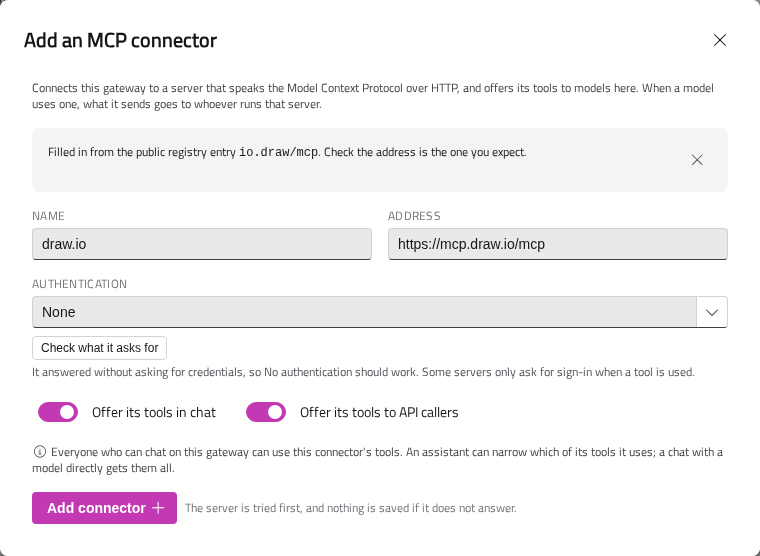
- Enter a Name, and the server's Address — its full MCP address, such as
https://mcp.example.com/mcp. From the directory, both are filled in for you; check the address is the one you expect. - Choose how Optima signs in to the server, under Authentication. Optima checks what the server asks for and suggests one — see Checking what a server asks for.
- Choose where its tools are offered: Offer its tools in chat and Offer its tools to API callers.
- Click Add connector.
Optima will try the server first, and adds nothing if it does not answer. If it cannot reach it, it will say why — for example, Nothing answered at that address — and offer Add it anyway.
A server that signs in with OAuth cannot be tried before signing in, so it is added as it is, and its window will open on Sign-in. See Signing In to MCP Connectors.
Checking What A Server Asks For
Beside Authentication, Check what it asks for asks the server how it expects to be signed in to. On the Add window it runs by itself once you have typed an address. It writes what it found and, for a new Connector, picks a choice for you:
| It found | It suggests |
|---|---|
| The server answered without a credential | None. Some servers only ask for a sign-in when a tool is used |
| The server asks for a token and offers no OAuth sign-in | Bearer token |
| The server asks for an OAuth sign-in | Sign in: each person's own account. Choose one organisation account instead if everyone should share one |
It is a suggestion: it never overrides a choice you made, and nothing is saved until you click Add connector or Save. If it could not check — for example, because the server's certificate is not trusted — it will say so rather than guessing.
Certificates
Optima checks the server's certificate. If it cannot be trusted — typically a server on your own network with a private certificate — the Add window will show the certificate's details and Trust this certificate and add. See Certificates.
On The Connectors Page
The new Connector will appear under Installed, with a green bar. Its card shows its state:
| State | Meaning |
|---|---|
| Connected | Working |
| Not checked yet | Optima has not tried it since it was added or changed |
| Unreachable | The last attempt failed, with how long ago |
| Sign-in needed | It signs in with an organisation account, and nobody has signed in yet, or the sign-in has lapsed |
| Each person signs in | Each person connects their own account |
| Credential refused | The server rejected the key it was sent |
| Certificate not trusted | The server's certificate is not trusted |
| Credential unreadable | The stored credential cannot be decrypted. Enter it again |
| Off | Switched off for both chat and the API |
| MCP is switched off | Allow MCP connectors is off in Settings |
Below that, the card shows how many of its tools are on, roughly how many tokens their descriptions cost each request, how it signs in, and who can use it.
Click Configure to change it. See Tools, Access and Certificates.
Removing A Server
Click the bin on its card and confirm Remove. Its tools will be withdrawn from every Assistant that had them, and its stored credential will be deleted. The server itself is not affected.