Reading Answers
An answer in Optima Chat can hold more than plain text. This page explains what you may see in an answer, and how to copy what you need.
Thinking
Some models think a problem through before answering. While they do, a Thinking row will appear at the top of the answer. When it finishes, it will become Thoughts, folded to one line. Click it to read what the model thought.
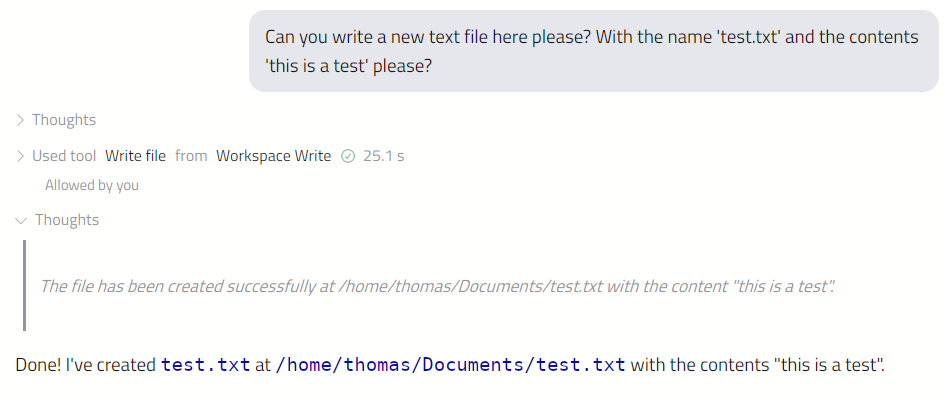
Reading the thinking can help you see how the model reached its answer, or why it went wrong. To have it open by default, turn on Show thinking expanded by default in Settings → General.
To change how much a model thinks, see Controls Panel.
Formatting
Answers can include headings, lists, tables, links and code. Code appears in its own block.
Links will open in your web browser. Only ordinary web and email links are opened. Anything else is shown as plain text.
Diagrams, Pictures And Maths
When an answer contains a diagram (written in Mermaid), an SVG picture or a mathematical formula, Optima Chat will draw it rather than show the code behind it.
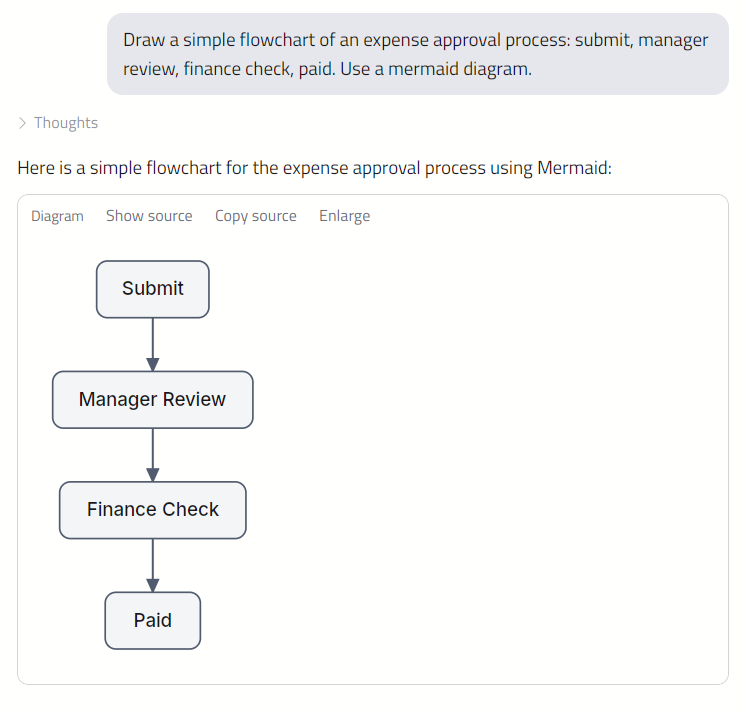
Each diagram and picture has buttons to Show source (and Show diagram to switch back), Copy source and Enlarge. If something cannot be drawn, its source will be shown instead.
Images From The Web
An answer can refer to a picture on a website. By default Optima Chat does not load these. Instead you will see a link marked (image not loaded), which you can click to open the picture in your browser.
This is a safeguard. Loading a picture contacts the website it comes from, and a carefully worded answer could use that to send information out of your conversation without you clicking anything. To load them anyway, turn on Load images from the web in answers in Settings → General.
Pictures returned by your organisation's own tools are not affected. They are always shown. See Using Tools.
Time And Speed
Below each answer is how long it took, and how quickly the model wrote it in tokens per second. Point at the speed to see more detail.
Copying
You can copy a whole answer, or only part of it. Below each answer:
- Copy copies the whole answer.
- Select text opens the answer in a window where you can select exactly what you want.
You can also select text in an answer with the mouse and press Ctrl+C (⌘C on a Mac).
The Message Menu
Right-click a message — or press and hold on a touch screen — for the following options:
| Option | What it copies |
|---|---|
| Copy | The text you have selected in that message |
| Copy message | The whole message, as plain text |
| Copy as Markdown | The whole answer, with its formatting marks — useful for pasting into another document or tool that understands Markdown |
| Select text… | Opens the Select text window |
The Select Text Window
The Select text window shows the message as ordinary text, so you can select any part of it — across paragraphs, by double-clicking a word, or with Ctrl+A (⌘A). Turn on Markdown to see the formatting marks. Copy all copies everything.
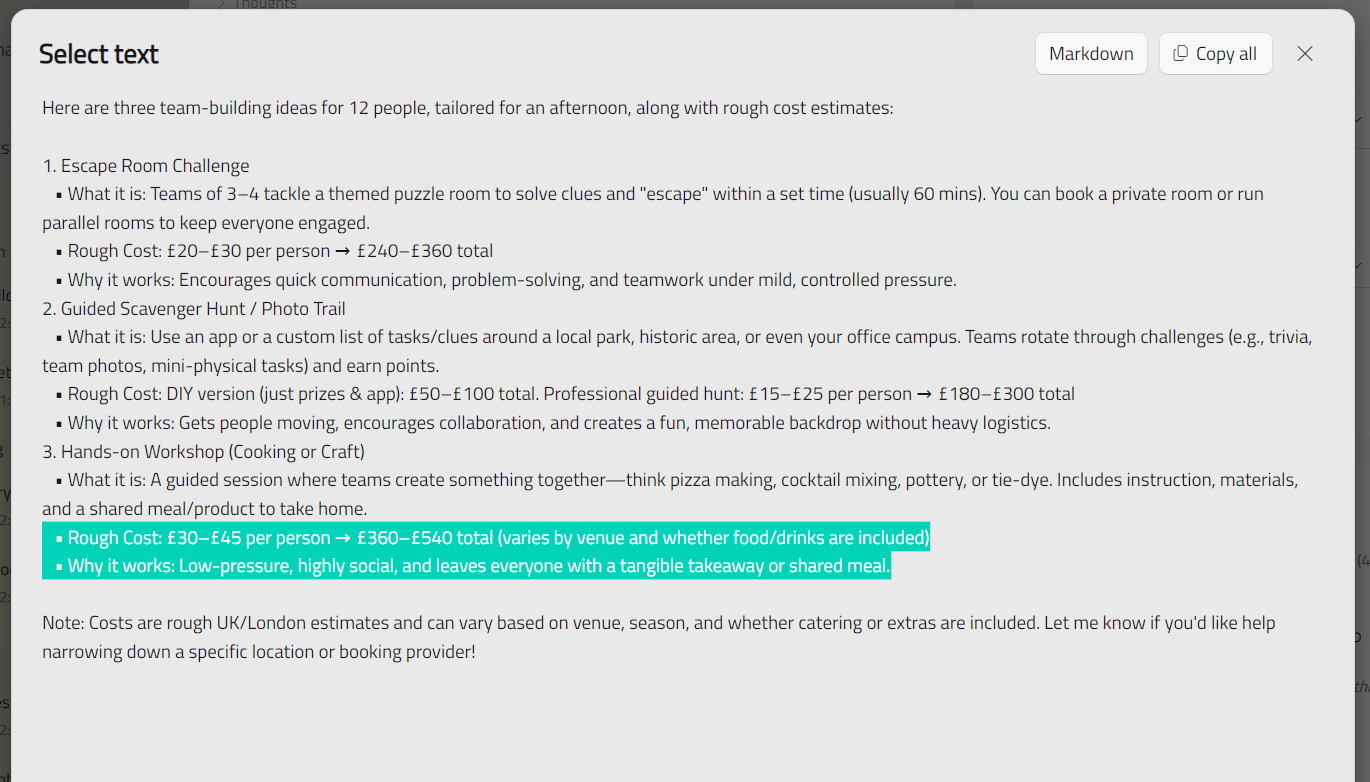
This is the most convenient way to copy part of an answer on a phone or tablet.