Licensing
Your licence decides how many users and Nodes the Gateway may have, and which features it includes. Optima checks it with Parker Software regularly, so changes to your licence reach the Gateway on their own. This page describes how to view and activate the licence, what happens at its limits, and what to do when it cannot be checked.
You need the Settings permission to view and change the licence.
Viewing The Licence
You can reach the licence details in three ways:
- Settings → General → View full licence details
- the button on the licence banner, when one is showing
- going to
/Licenseon the Gateway
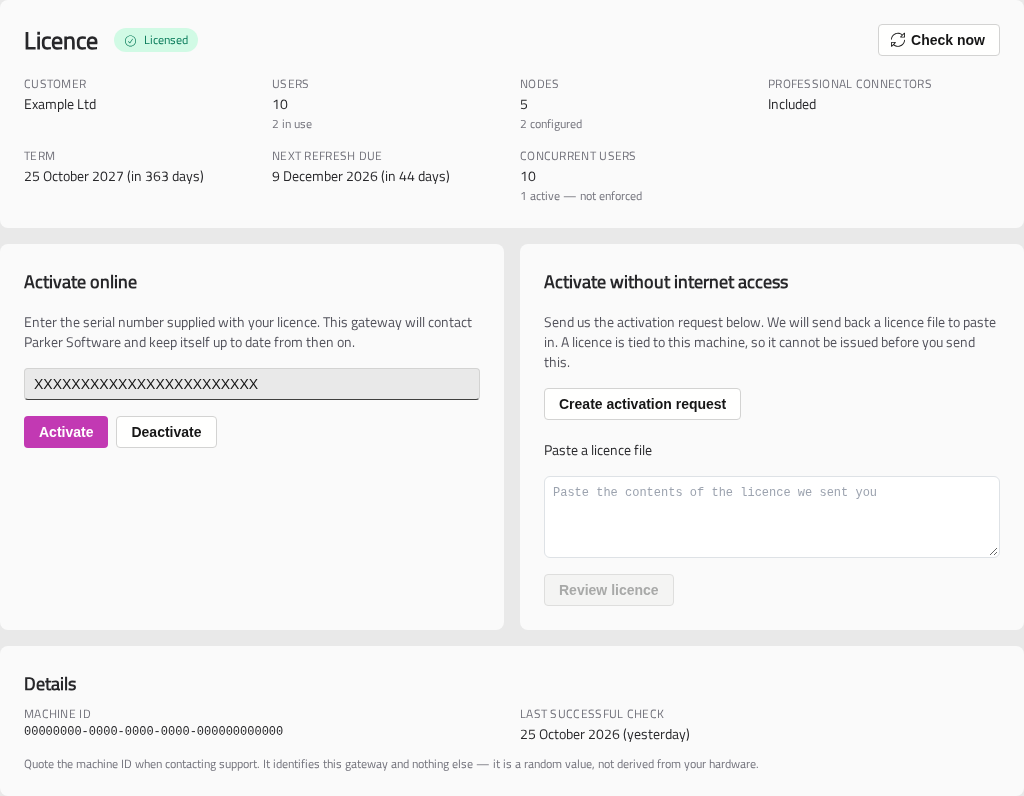
The licence's status is shown at the top:
| Status | What it means |
|---|---|
| Licensed | All is well |
| Action needed | The licence needs attention soon — see the message beneath it |
| Unlicensed | No valid licence. The Gateway runs with the basic allowance of 1 user and 1 Node |
| Withdrawn | Parker Software has withdrawn this licence |
| Not activated | No licence has been activated yet |
Below it are the licence's details:
| Item | What it shows |
|---|---|
| Customer | Who the licence belongs to |
| Users | How many users the licence allows, and how many exist |
| Nodes | How many Nodes the licence allows, and how many are configured |
| Professional connectors | Whether the licence includes professional Connectors |
| Term | When the licence ends, if it does |
| Next refresh due | When the Gateway will next check the licence |
| Grace period end | Only shown during a grace period: the date the licence stops applying. See If the licence cannot be checked |
| Concurrent users | How many people have used chat recently. Counted for information only — nobody is refused |
Click Check now to check the licence with Parker Software straight away.
Activating A Licence
You can activate a licence online, without internet access, or during first-time setup.
Online
- Under Activate online, enter the Serial number supplied with your licence.
- Click Activate.
The Gateway will contact Parker Software, install the licence, and keep it up to date from then on. A new or changed licence takes effect straight away — there is no need to restart.
Without Internet Access
For a Gateway that cannot reach the internet:
- Under Activate without internet access, click Create activation request.
- Copy all of the request, including any line breaks, and email it to Parker Software.
- When the licence file comes back, paste its contents into the box and click Review licence.
- Check the details and click Install licence.
A licence installed this way does not need to be checked online.
During First-Time Setup
The setup wizard asks for a serial number, or offers Offline Registration for the same steps as above. See First-Time Setup.
Limits
When the Gateway reaches its licence's limit:
- Users — creating another user will be refused, with a message saying so.
- Nodes — adding another Node will be refused. The heading on the Nodes page shows how many you have of how many allowed, such as Nodes - 2 / 3.
Nothing already set up is ever removed. If your licence changes to allow fewer users or Nodes than you have, everything keeps working, but nothing more can be added until the licence is raised.
If The Licence Cannot Be Checked
A connected Gateway checks its licence every day. If it cannot reach Parker Software — or the licence expires — a banner will appear and the licence will enter a grace period of 14 days (90 days for a licence installed without internet access). The licence page shows the date the grace period ends.
During the grace period everything carries on as normal. Restore the connection, renew the licence, or install a new one before it ends.
When the grace period ends, the licence no longer applies. The Gateway keeps running, but with the basic allowance: no more than 1 user and 1 Node can be added.
"Activate this gateway again"
If the licence page asks you to activate the Gateway again with its serial number, enter the serial number under Activate online and click Activate. The Gateway keeps working in the meantime.
Moving The Licence To Another Machine
A licence belongs to one machine. To move it:
- On the old Gateway, open the licence page and click Deactivate, or click Unlink in Settings → General. This releases the serial number.
- On the new Gateway, activate it with the same serial number.
Tip
When contacting Parker Software support, quote the Machine ID shown under Details. It identifies this Gateway.