Setting Up The Gateway
Optima Connectors are Python scripts, and Server Connectors run on the Gateway. Before any of them can work, the Gateway needs its own Python runtime. This page covers installing it, the Python packages some Connectors need, and the environment variables their tools can see.
MCP Connectors run on someone else's server and need none of this.
The Connector Runtime
The connector runtime is a private copy of Python that Optima downloads from Parker Software and keeps to itself. It is not installed automatically, and it does not affect any Python already on the machine.
While it is not ready, a banner at the top of the Connectors page will say so:
| Banner | Meaning |
|---|---|
| Python runtime is not ready — connectors cannot run. | Not installed, or the last install failed. Click it to open the Runtime Manager |
| Runtime update available | A newer version is published. Click it to update |
| Initialising runtime… / Runtime updating… | Wait for it to finish |
With the runtime ready, there is no banner.
Installing And Updating
To install the runtime, or update it:
- On the Connectors page, click Runtime.
- In Runtime Manager, beside Gateway Python Runtime, click Install — or Update if one is available.
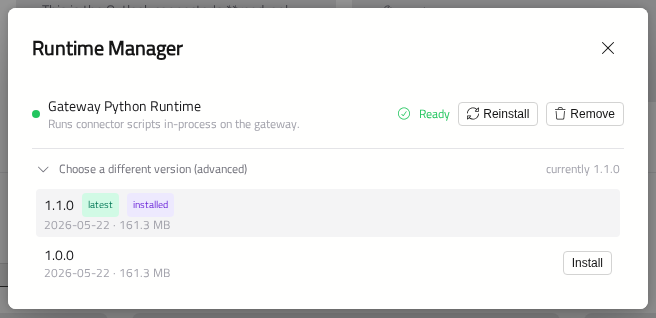
The runtime will download, install and test itself. Its status shows each step:
| Status | Button |
|---|---|
| Ready | Reinstall |
| Not installed | Install |
| Update available | Update |
| Downloading…, Installing…, Testing runtime… | — |
| Download failed, Install failed, Self-test failed, Fault | Retry |
Install and Update always fetch the latest version. The Gateway needs internet access to download it.
Choosing A Version
Under Choose a different version (advanced), each published version is listed with its date, size and release notes. You can click Install beside one to switch to it — for example, to go back to an earlier version after an update causes a problem.
Before switching, Optima will list any installed Connectors that need a newer runtime than the one you chose. They may stop working until you update again.
Connectors That Need A Newer Runtime
A Connector built for a newer runtime than yours shows Needs runtime ≥ and a version, on its card and in the marketplace. Click the chip on an installed Connector to open the Runtime Manager and update.
You can still install such a Connector, but its tools may fail until the runtime is updated.
Removing The Runtime
Remove deletes the runtime's files. Server Connectors will stop working until a runtime is installed again. Your Connectors, their settings and their installed packages are kept.
Python Packages
Some Connectors need extra Python packages — for example, a library for reading spreadsheets. The Connector declares them, with exact versions, and Optima installs them into a folder of their own for that Connector, so Connectors never interfere with each other.
Installing packages is off until an administrator turns it on, because it downloads and runs code on the Gateway's machine.
Turning Installs On
In Settings → General, under Connector packages and environment:
- Turn on Install connector Python dependencies.
- You can optionally enter a Package index URL to install from your own package mirror instead of the public Python Package Index (PyPI).
You will need the Connector Dependencies permission to see these settings. When you turn installs on, any packages waiting to be installed will be installed straight away. See Settings.
A Connector's Packages
A Connector that declares packages shows a chip on its card, such as 2 pkgs. Click it to open Python dependencies, which lists the packages and their state:
| State | Meaning |
|---|---|
| Installed and ready. | The Connector's tools are available |
| Pending | Not installed yet. The Connector's tools stay hidden until they are |
| Installing… | In progress |
| Install failed. | The error output is shown. Click Retry |
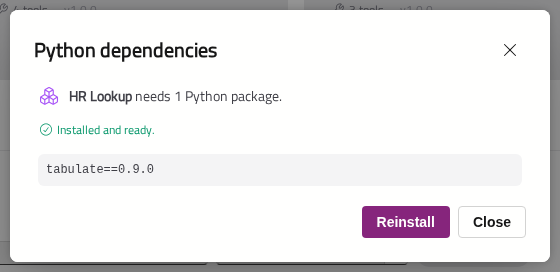
Install now, Retry and Reinstall need the Connector Dependencies permission, with installs turned on in Settings. Without the permission there is no button, and the Connector will wait until someone who has it installs the packages.
After you add or update a Connector that declares packages, they will wait as Pending until someone installs them. Pending packages are also installed when installs are turned on in Settings, and when the Gateway starts with installs on.
Note
While installs are off, the dialog says Dependency installs are disabled and the Connector stays Pending.
Environment Variables
Connector tools start with a minimal set of environment variables — the path, home and temporary folders, locale and proxy settings. This keeps credentials in the Gateway's own environment, such as connection strings and cloud keys, out of their reach.
A tool that needs another variable — for example, JAVA_HOME — can get it in two ways:
- The Connector asks for it. Its author lists the variable names it reads. These are shown before you install it, under Reads environment variables, and on its card as a chip such as 1 env var. Its tools can then read those variables' values on the Gateway, if they are set there.
- You allow it for every tool. In Settings → General, list the names under Connector tool environment, separated by commas.
Python's own variables, such as PYTHONPATH, are always set by Optima and cannot be passed through.
Warning
Check what a Connector reads before you install it. A Connector that asks for a variable can read its value, whatever the variable holds.
Tools that run on people's own computers are not affected: each desktop app has its own list, in Settings → Connectors. See Settings and Shortcuts.