Serve More People At Once On Two GPUs
This guide sets up one model to answer several conversations at the same time, on a machine with two GPUs. It explains the one decision that matters — how much context each conversation gets — and how to check you chose well.
In this example we will use a Node with two AMD Radeon AI PRO R9700 cards (32 GB each), on Linux, with the Vulkan backend, running Qwen3.8-27B at Q4. The same steps apply to any pair of GPUs and any model that fits on one of them.
By the end of this guide you will have the model running as two instances, one on each GPU, answering 2, 4 or 6 conversations at once.
Before You Start
You will need the following:
- The Node is connected to the Gateway, and you have the Executors permission.
- A backend is installed and the model is downloaded. See Adding Models.
- The model fits on one of the GPUs, with room to spare. If it only fits across both, see Variations.
The Trade: Context Or Conversations
Each GPU has a fixed amount of memory. The model's weights take a fixed share of it. What is left holds context — the conversations the model is working on. You can give that memory to one long conversation, or share it between several shorter ones.
Two settings decide how it is shared:
| Setting | What it means |
|---|---|
| Context Window | The room each conversation gets: its prompt, its history, its attachments and tool results, and the answer |
| Requests at Once | How many conversations each instance answers together. Each one gets its own full Context Window |
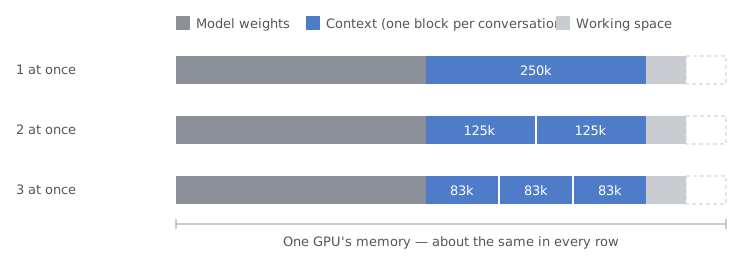
So the memory a GPU needs for context goes up with Context Window × Requests at Once. Keep that product the same and memory use will stay about the same:
Note
If you have used llama.cpp directly: its -np option divides one context window between requests. Optima does the opposite — Context Window is what each conversation gets, and Optima reserves memory for all of them. To share the same memory between more conversations, lower Context Window as you raise Requests at Once.
Choose A Configuration
On the example machine, Qwen3.8-27B with a 250,000-token context window and one request at once uses about 28.25 GB of each card's 32 GB. Sharing that context space two or three ways gives:
| Requests at Once | Context Window | Conversations at once (two GPUs) | Suits |
|---|---|---|---|
| 1 | 250,000 | 2 | Very long documents, large codebases, long-running agent and tool work |
| 2 | 125,000 | 4 | Most organisations: long chats, attached documents and tools, with room to spare |
| 3 | 83,000 | 6 | A busy team asking everyday questions |
All three use about the same memory, because each card holds about 250,000 tokens of context in every case.
To choose, bear the following in mind:
- Most chats are short. A question-and-answer conversation rarely passes 20,000–30,000 tokens.
- Documents and tools use room quickly. One attached document can take up to half the context window, and every tool result stays in the context until the answer is finished.
- If you are unsure, start with 2 at once and 125,000. You can change it later, once you have seen how people use it.
When more people are chatting than there are conversations at once, nobody is refused. The extra requests will wait for the next free slot, and Optima Chat will show Waiting for model… until theirs starts.
Note
Conversations that share a GPU also share its speed. With three at once on a card, each answer comes out more slowly than one alone would, though the card gets more done in total. Two conversations on different instances each run at full speed.
Set It Up
- Open Nodes, select the Node, and in its Executors panel click the gear icon on the model.
- Under Hardware, check the Compute Backend — Vulkan in the example.
- Set Instances to 2, then click One per GPU, so that each instance has its own card.
- Set Requests at Once — 2 in the example. With instances, it applies to each instance.
- Under Context, set Context Window to match — 125000 in the example.
-
Look at Memory on the right. It shows each instance separately, and each should say Fits.
-
Click Save. The instances will start one after the other.
If an instance shows Fits, reduced or Does not fit, lower Context Window a little, or see Fitting in more.
Tip
The memory estimate compares against the memory free now. If the model is already running, its own memory counts against it, and the estimate can look worse than it will be. Stop the model before changing its settings to get a clean estimate.
Check It Is Working
Once the instances are running, you can check that they are sharing the work:
- In the Executors panel, the model has a summary line such as 2 instances · 2 running · idle. Click it to see each instance's GPU, its speed, and whether it is busy.
- In Optima Chat, start conversations in several windows at once. Each instance will show busy while it answers.
-
Over the following weeks, open Analytics and look at the Capacity tab. It shows how many people were chatting at once, typically and at peak.
What you see What to do People often see Waiting for model…, and the peak is above your conversations at once Move down a row: more requests at once, a smaller context window each People's conversations fill the context bar, or long documents will not attach Move up a row: a larger context window, fewer at once Neither Leave it alone
See Analytics and Context Window.
Fitting In More
If the configuration you want does not fit, you can make more room:
- Store the context at a lower precision. Set KV Cache to Q8_0 to roughly halve the memory context takes — enough to double the context window, or the requests at once, in the same memory. The cost in answer quality is small. Keep Flash Attention on: a compressed V Cache needs it.
- Keep the GPUs to themselves. A card that also drives a monitor, or runs another model, has less memory free, and its instance can end up partly on the CPU — running, but much more slowly.
Note
An instance that does not fit its GPU still starts, but llama.cpp quietly moves part of it to the CPU, and it is much slower than its twin. If one instance's speed in the instances list is far below the other's, check its memory estimate.
Variations
If your machine is not like the example, use the table below.
| Your machine | What to do |
|---|---|
| One GPU | Instances is not shown. Use Requests at Once and Context Window alone — the same trade, for one card. See Requests at once |
| More than two GPUs | Set Instances to the number of GPUs (up to 8) and click One per GPU. Conversations at once is instances × requests at once |
| The model only fits across both GPUs | Instances are not for you. Use Tensor Split to spread one copy of the model across both cards, then choose Requests at Once for that one copy. See Sharing a model across GPUs |
| Two different GPUs | Every instance uses the same settings, so the smaller card decides what fits. Check each instance's memory estimate |