Signing In To MCP Connectors
Most MCP servers need to know who is calling. How Optima signs in is chosen under Authentication when you add a server, and can be changed later on the Sign-in tab of its window. The choice decides what Optima sends, and who the server sees as the caller:
| Authentication | What Optima sends | Who the server sees |
|---|---|---|
| None | Nothing | Nobody in particular |
| Bearer token | A token you paste in, as Authorization: Bearer … |
Whoever the token belongs to, for everyone |
| Custom headers | Headers you name, such as X-Api-Key |
Whoever the key belongs to, for everyone |
| Sign in: one organisation account | An OAuth sign-in, made once by an administrator | That account, for everyone |
| Sign in: each person's own account | An OAuth sign-in per person | Each person, as themselves |
If you are not sure, let Optima check — see Checking what a server asks for.
Note
With a token, custom headers or one organisation account, everyone who can use the Connector acts as the same account. Outside Assistants, an MCP Connector like this is only available to the people on its access list. See Access.
A Token Or Custom Headers
Paste the token, or add each header's name and value with Add a header. Headers are sent exactly as written, with every request to this server.
Optima refuses headers that it sets itself, such as Host and Content-Type, and values that contain line breaks.
The credential will be stored encrypted on the Gateway and never shown again. It is only ever sent to the server's own address.
To change it, open the server's Sign-in tab and click Change how it signs in. Remove the credential deletes it.
Signing In With OAuth
Many services that offer an MCP server sign people in the way an app does, with OAuth. Optima usually registers itself with the service automatically, so you do not need to create an app there first.
One Organisation Account
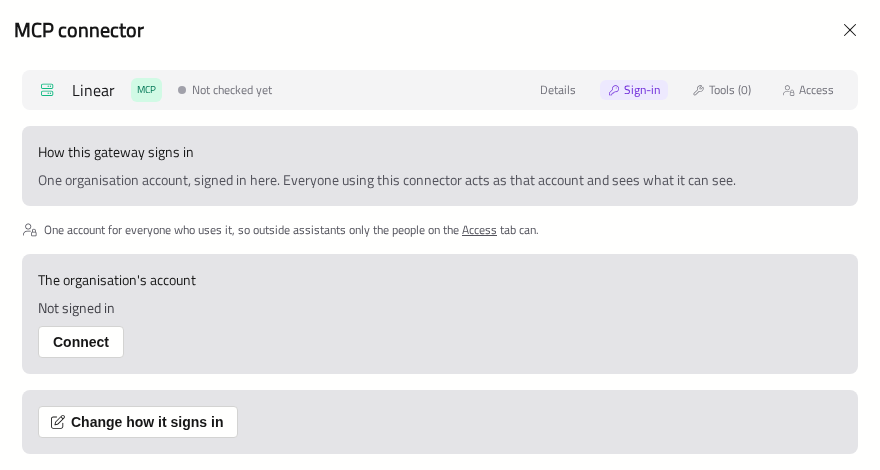
With this choice, an administrator signs in once, and everyone who can use the Connector uses that account.
- Add the server with Sign in: one organisation account. Its window will open on Sign-in.
- Under The organisation's account, click Connect.
- Sign in to the service in the window that opens, and approve what Optima may do.
The tab will then show Signed in. If the sign-in stops working, the card will show Sign-in needed, and the tab Needs signing in again: click Connect again.
Warning
Connect with an account set up for this purpose, not a person's own. Everyone on the access list acts as it.
Each Person's Own Account
With this choice, each person connects their own account, so the server sees them as themselves and gives them only what they could reach anyway. This is usually the safer choice, and the one Optima suggests when a server offers OAuth.
People can connect in either of two places:
- In the Gateway — on the Connected accounts page, in the menu. It lists each server they can connect to, with Connected, Reconnect needed or Not connected.
- In Optima Chat — in Settings → Connected accounts, or from the chat itself. The TOOLS section lists servers they still need to sign in to. If a sign-in has lapsed mid-conversation, the conversation will pause with Sign in, and will carry on once they have signed in. See Using Tools.
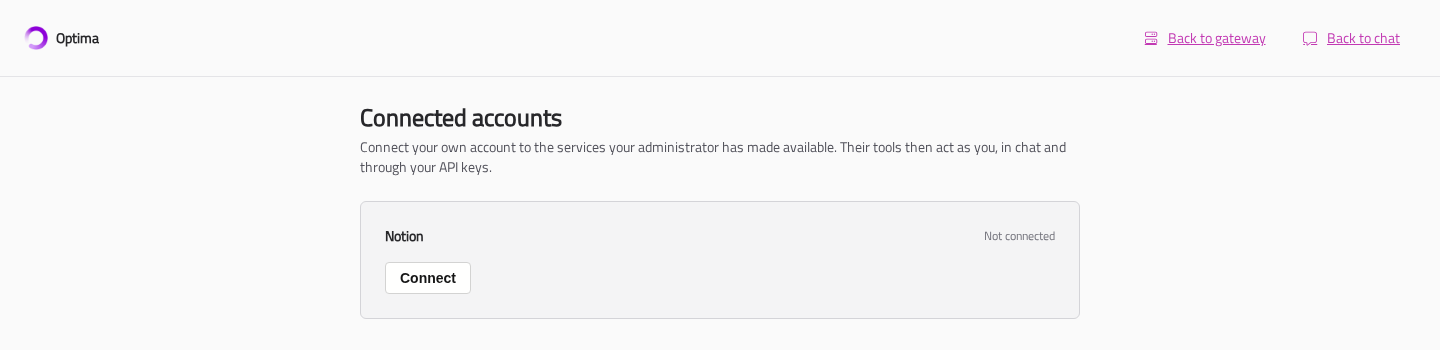
Until someone connects, they do not get the server's tools — unless the server lists some without a sign-in, in which case they get those, used anonymously. The AI never asks anyone to sign in; Optima Chat does.
The Sign-in tab shows Your own account, so that you can connect your own while you set it up.
Scopes
Scopes (optional) names the permissions Optima asks the service for. Leave it blank to ask for what the service suggests. If a tool later needs more, Optima will ask for it at the next sign-in.
When A Service Needs An App Registration
A few services do not let apps register themselves. In that case, the Sign-in tab will say the service needs you to register an app first:
- Click Use your own app registration (only if the service needs one).
- Copy the callback URL shown, and register an app at the service with it as the redirect URI.
- Enter the app's Client ID, and its Client secret if it has one.
- Click Save, then Connect.
The tab shows which way Optima identifies itself — your own app registration, registered automatically, or a client metadata document hosted by Parker Software.
Sign-In Servers On Your Own Network
For safety, Optima only signs in through servers on the public internet. If your service's sign-in server is on your own network, list its host name under Trusted internal sign-in hosts (optional).
Note
OAuth sign-ins and calls go directly to the service, never through a proxy server. The Gateway's network must allow direct access to the service.
Changing The Address
You can change a server's Address on its Details tab. Changing it to a different server — another host, port or scheme — will remove its stored credential and its trusted certificate when you save, unless you enter a new credential at the same time. A key meant for one server is never sent to another.