Auth Profiles
A tool never contains a password, key or token. Instead, the Connector declares auth profiles — named recipes for a credential — and each tool says which profiles it uses. When the tool runs, Optima will look up each profile's credential and hand it to the script as auth.<profile name>.
The values themselves belong to whoever installs the Connector. They are stored encrypted on the Gateway, and are never part of an exported .ocon file. This means you can share a Connector without sharing your own credentials.
Adding A Profile
To add an auth profile:
- In the connector editor, open the Auth tab and click +. A profile called
auth_profilewill be added and selected. - Under Identity, give it a Name and a Description.
- Under Method, choose its Kind, and fill in the fields for that kind.
- Click the save button (the floppy disk) in the editor's header.
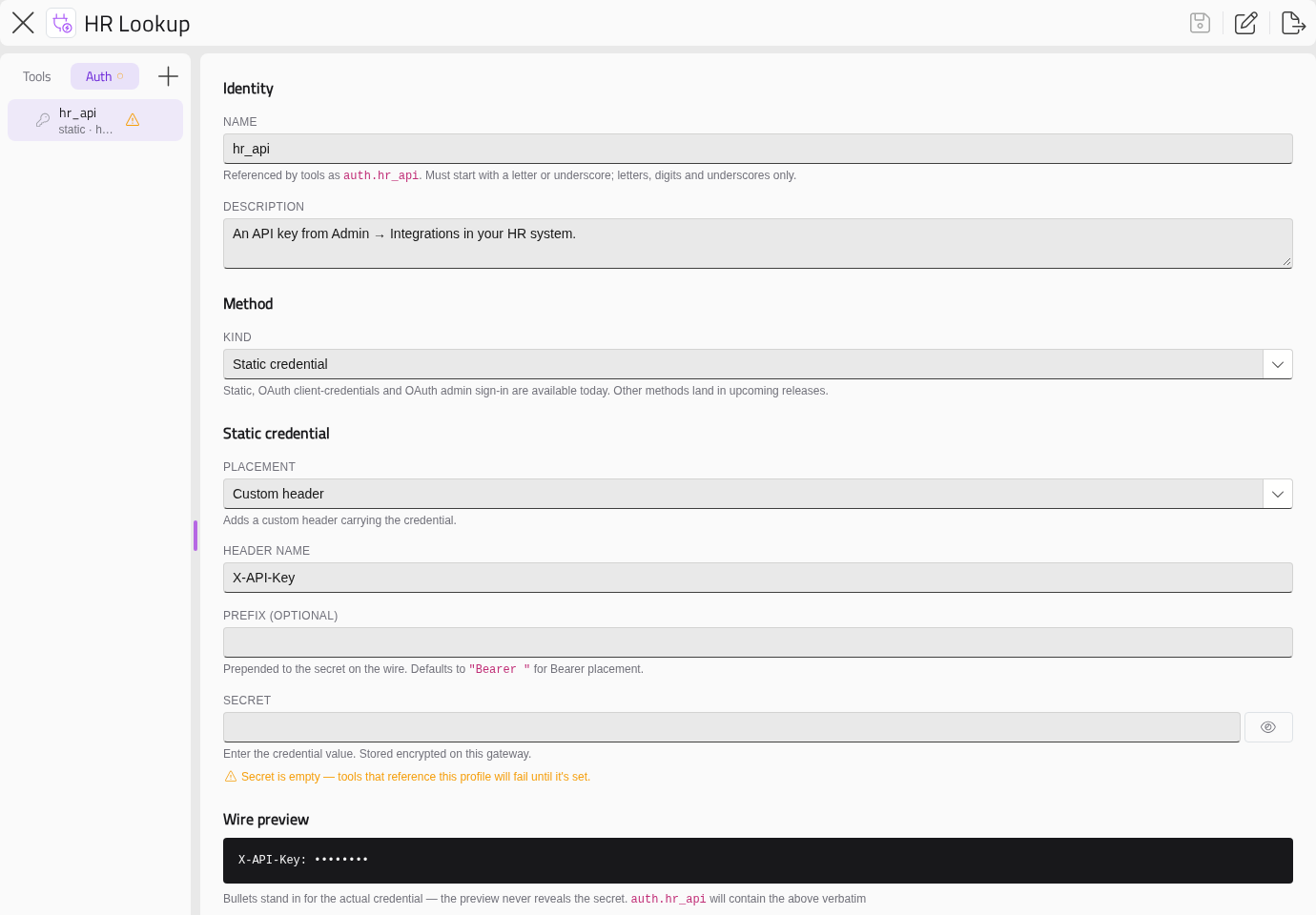
The Name is how tools refer to the profile: a profile called api is auth.api in Python. It can contain letters, digits and underscores, and must start with a letter or underscore. Avoid Python keywords. Renaming a profile will update every tool that uses it.
Use the Description to tell the installer where to get the credential — for example, "API key from Settings → API in the Acme dashboard".
To delete a profile, point at it on the Auth tab and click its bin. It will be deleted straight away.
Kinds
A profile's kind says how the credential is obtained:
| Kind | Use it for | Connectors |
|---|---|---|
| Static credential | An API key, a token, or a username and password | Server and Client |
| OAuth — client credentials | A service that issues tokens to an app, with no person signing in | Server only |
| OAuth: admin sign-in | A service where a person signs in once and grants access. The Connector then acts as that account for everyone | Server only |
Use Static credential unless the service needs OAuth. Other kinds in the list are marked (soon) and cannot be chosen.
Note
There is no per-person sign-in for Optima Connectors yet. Every profile is one credential shared by the whole installation, and a tool does not know which person called it.
Static Credential
Choose a Placement — where the secret goes on each request:
| Placement | Also fill in | The request carries |
|---|---|---|
| Bearer (Authorization header) | Prefix (optional), Bearer if blank |
Authorization: Bearer <secret> |
| Custom header | Header name, and Prefix (optional) | X-API-Key: <secret> |
| Query parameter | Query parameter name | ?api_key=<secret> |
| Basic auth | Username, and the secret is the Password | Authorization: Basic … |
Wire preview shows what a request will carry, with bullets in place of the secret.
The Secret field holds the credential this Gateway uses. You can enter your own to test the Connector here. Once a secret is saved, it will be kept until you click Replace and enter another.
OAuth — Client Credentials
With this kind, the Gateway exchanges a client ID and secret for an access token at the service's token endpoint, and keeps the token fresh. Fill in Token endpoint, and Scope (optional) and Audience (optional) if the service needs them. Client ID and Client secret are the installer's.
Test connection fetches a token once, without saving anything.
OAuth: Admin Sign-In
With this kind, an administrator signs in once, and the Gateway keeps the resulting token refreshed. Fill in:
| Field | What it is |
|---|---|
| Callback URL to register with the provider | Shown, not entered. Whoever registers the app at the service gives it this address. See OAuth Sign-in Connectors |
| Authorize endpoint | Where the person signs in and grants access. Look for "authorization endpoint" in the service's OAuth documentation |
| Token endpoint | Where the Gateway exchanges the sign-in for a token, and refreshes it |
| Scope (optional) | The permissions to ask for, separated by spaces |
| Probe URL (optional) | A cheap request that needs the token, such as "get my profile". Test connection calls it to prove the sign-in works |
| Use PKCE (S256) | Leave it ticked unless the service rejects it |
| Extra authorize parameters (optional) | Anything else a particular service needs on the sign-in request, such as prompt=consent or access_type=offline. Click + Add for each |
Client ID and Client secret are the installer's, from the app they register at the service. To test on your own Gateway, enter your own, save, click Connect and sign in, then click Test connection.
Giving A Tool A Profile
A tool can use a profile only once it has been given it:
- Open the tool's settings window (point at the tool and click its pencil).
- Under Auth profiles, tick each profile the tool uses.
- Click Save auth.
The tool's Uses auth row in the editor will then list them.
Using A Credential In Python
Every profile, whatever its kind, gives your script the same object. For example:
import httpx

r = httpx.get(
    f"{inputs.base_url}/v1/items",
    headers={**auth.api.headers(), "Accept": "application/json"},
    params={**auth.api.params(), "q": inputs.query},
    timeout=30,
)
Always merge both headers() and params(). An installer can then change the placement without breaking your tool.
| Attribute | What it is |
|---|---|
headers() |
A dictionary of headers to send, already formatted |
params() |
A dictionary of query parameters to send |
secret |
The raw secret, or the access token for OAuth |
username |
Basic auth only |
placement, header_name, query_param, prefix |
How the credential is placed |
For a credential that is not sent as it is — a request signature, or a key inside a request body — declare a Static credential profile anyway and compute what you need from auth.<name>.secret.
Rules
Follow these rules for every Connector that uses credentials:
- Never put a secret, token, username or client ID in your Python, in an input, or in a default value.
- Never include a credential in
resultor in an error message. - If a tool lists a profile that no longer exists, its Uses auth row shows the name in red. Fix the list before you share the Connector.
- A Client Connector can use only Static credential profiles. Choosing Client — connected desktop with an OAuth profile is refused.
- Until the installer enters a credential, the tools that use it will fail with a message telling them to.
What Travels In An Exported File
When you export a Connector, its auth profiles go with it, but their values do not:
| Kept | Left out |
|---|---|
| Name, description, kind and placement | Secret and password |
| Header name, query parameter name and prefix | Username |
| Token and authorize endpoints, scope, audience, probe URL, PKCE and extra parameters | Client ID and client secret |
| Any sign-in or token |
Whoever imports the Connector enters their own values. See Importing and Exporting Connectors.