Assistants
An Assistant is a ready-made AI helper for a particular job. It combines a model with instructions, and optionally tools, Knowledge Bases and Agents. People pick it in Optima Chat, and applications can call it through the API. You can create as many Assistants as you need, each set up for one kind of work.
For example:
- An HR Assistant that answers from your policy documents.
- A support Assistant with tools that look up customers and orders.
- A writing Assistant with instructions on your house style.
Assistants are managed on the Assistants page, from the menu.
Who Can Do What
Three permissions decide what you can do with Assistants:
| Permission | What it allows |
|---|---|
| Assistants | Open the page, create Assistants, and change the Assistants shared with them |
| Assistant Admin | Use and manage every Assistant. Only Assistant administrators can give an Assistant Optima Connectors or Agents |
| MCP Connectors | Also needed to add or remove an MCP Connector on an Assistant |
Nobody can give an Assistant access to something they cannot reach themselves. For example, you can only add a Knowledge Base you can open. Sources you cannot change will be shown locked.
The Assistants Page
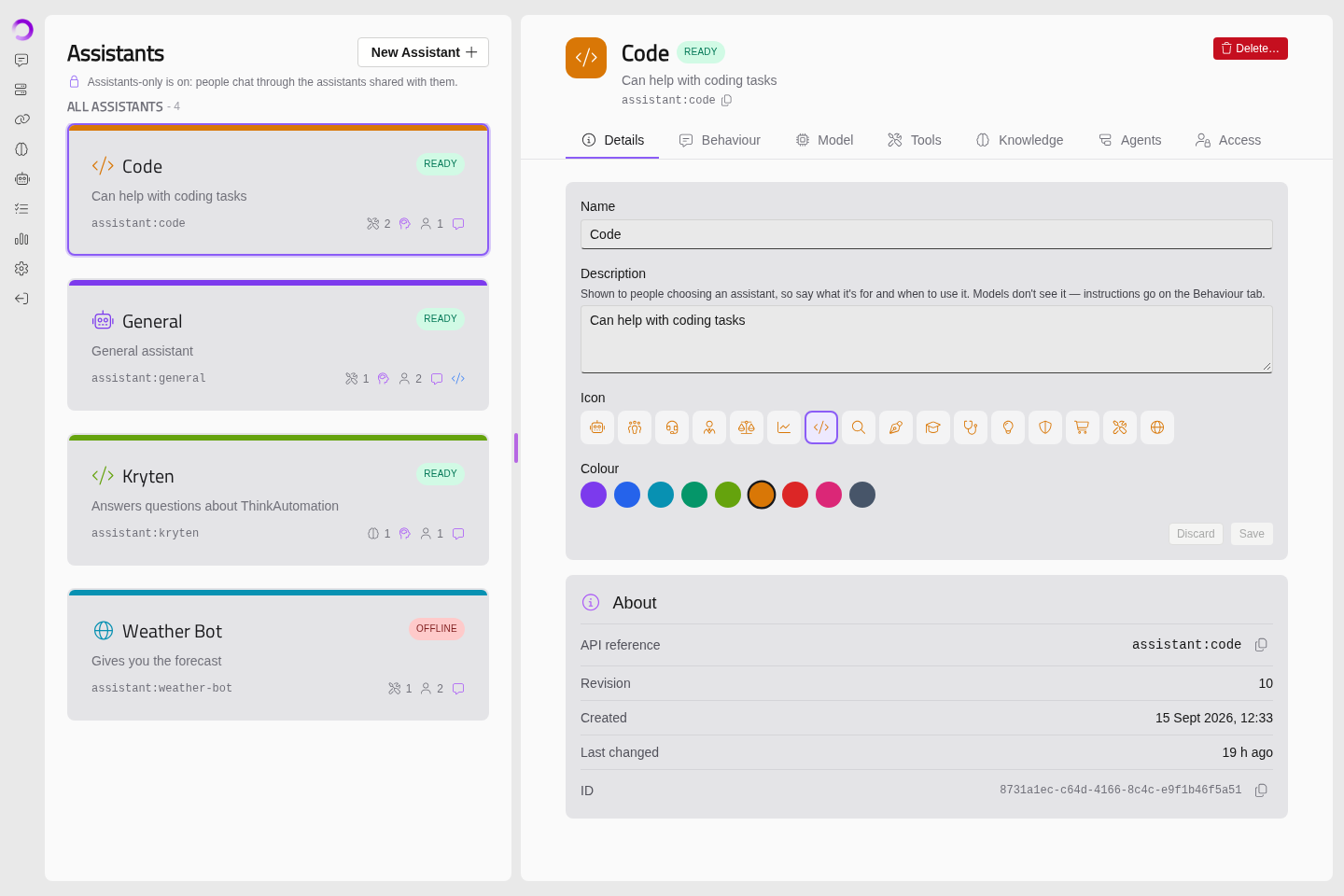
The list on the left shows the Assistants you can manage. Switch between Your assistants and All assistants, or type in Filter… to find one.
Select an Assistant to edit it. Its header shows:
- Its status: Ready; On fallback (its main model is not running, so a fallback model is answering); or Offline (none of its models are running).
- Agent only or Switched off, if they apply. View only means you can see the Assistant but not change it.
- Its reference, such as
assistant:hr-helper, which API callers use. Click to copy it. - Delete…
The first time you open the page, a short introduction will offer the two Assistant settings.
Creating An Assistant
- Click New Assistant.
- Enter a Name.
- Check the Reference. It is filled in from the name, and is what API callers use, after
assistant:. It cannot be changed later. - Add a Description and choose a Model.
- Click Create.
Then work through the tabs below. Click Save on each tab to apply its changes.
Details
The Details tab controls how the Assistant appears to people choosing it in Optima Chat: its Name, Description, Icon and Colour. Write the description for people — say what the Assistant is for and when to use it. The model never sees it.
About shows the Assistant's API reference, when it was created and last changed, and its Revision. The revision moves whenever what the Assistant runs as changes — its instructions, model, tools or knowledge — and each reply records the revision that wrote it.
Behaviour
The Behaviour tab holds the Assistant's instructions and the settings that shape how it answers.
Instructions — the system prompt every conversation with this Assistant starts from. Tell the model who it is, what it should do, and how it should answer. People chatting with the Assistant cannot see or change these instructions.
When an API caller sends its own system prompt — what to do when an API request includes its own instructions:
| Option | What happens |
|---|---|
| Add to the assistant's prompt | Recommended. The caller's prompt follows the Assistant's, in one message |
| Ignore it | The caller's prompt is removed silently, and the Assistant's is used alone |
| Replace the assistant's prompt | The caller's prompt is used instead. Tools and knowledge stay the Assistant's |
| Refuse the request | The request is refused with an error, so the caller finds out |
Chat always uses the Assistant's own instructions.
Inference:
| Setting | What it does |
|---|---|
| Temperature | Lower is steadier and more literal; higher is more varied. Overrides anything the caller sends. Tick Use the model's default to leave it to the model |
| Tool iterations | How many rounds of tool calls one reply may take before the Assistant must answer. 0 means no limit. Tick Use the server default to use the Gateway's setting. API requests and Scheduled Tasks are always capped, because nobody can stop them |
| Reasoning effort | For models that think before answering: Model default, Minimal (thinking off — faster, but less careful), Low, Medium or High. People can still choose their own in chat |
Model
The Model tab sets which model the Assistant runs on, and what to use when that model is not available.
Primary model — the model the Assistant runs on. It is chosen by the exact model build, so a Node with a different model under the same name will not be used by mistake.
Fallbacks — other models to try, in order, when the primary is not running. Click Add a fallback… to add one. With no fallbacks, the Assistant cannot answer while its primary model is down.
Tools
The Tools tab sets what the Assistant may use. It can use only what is ticked here.
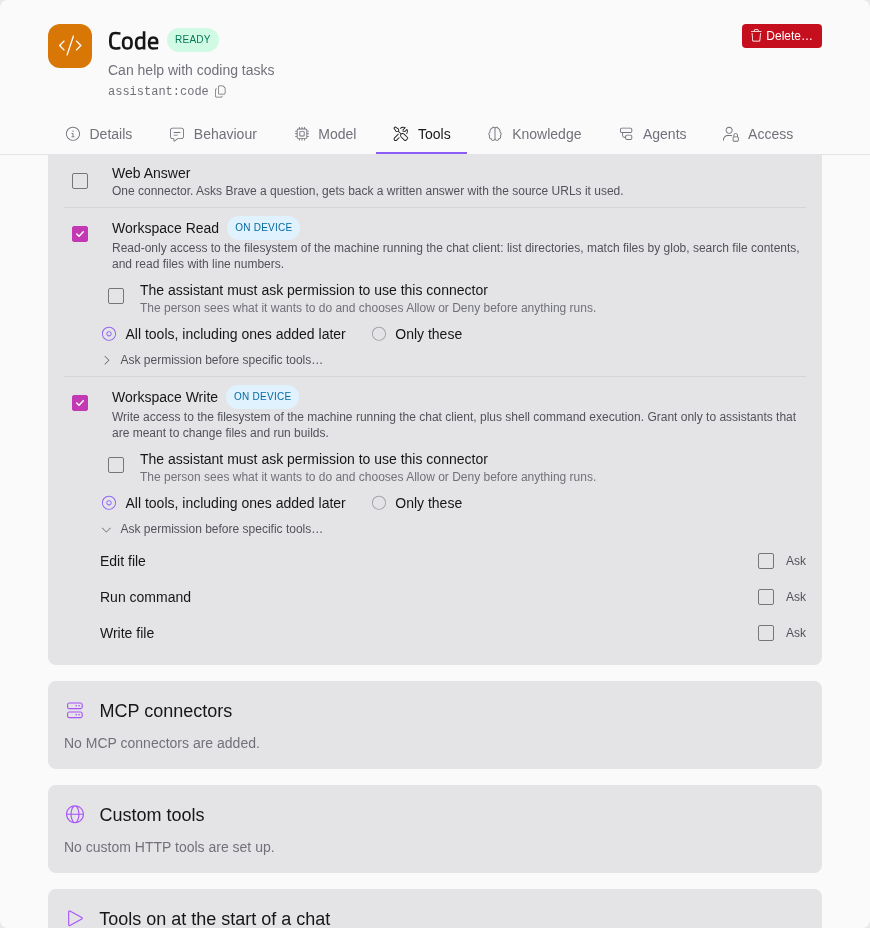
Tools are grouped by where they come from: Optima connectors and MCP connectors. A Connector that is switched off on the Connectors page is marked Off: it stays granted, but offers nothing until it is switched back on. For each source you grant, you can choose:
- All tools, including ones added later, or Only these with the tools you tick.
- The assistant must ask permission to use this connector — before any of its tools runs, the person will see what it wants to do and choose Allow or Deny.
- Ask permission before specific tools… — the same, for chosen tools only.
Note
Tools that must ask permission are only offered in chat. On the API and in Scheduled Tasks there is nobody to ask, so the Assistant does not get them there.
Tools on at the start of a chat — which tools are already ticked when someone opens a new chat with this Assistant. They can change them. With none ticked, Optima Chat will pick tools automatically. Chat only.
Built-in tools — things Optima itself can do:
| Built-in | What it does |
|---|---|
| Show a web page | Opens a web page beside the chat |
| Tell it the date and time | Adds the current date and time to each message |
| List its own tools | Lets it answer "what can you do?" accurately |
| Tell it who it is talking to | Adds the person's name |
| Tell it what device it's on | Adds the person's device and operating system |
Each built-in also has a switch in Settings → AI. If that is off, the Tools tab will warn you that nobody can use it yet. See Settings.
Also allow:
| Option | What it does |
|---|---|
| AI memory | Lets it look through the person's earlier conversations for relevant details. When off, its conversations are also left out of other Assistants' memory searches |
| Attachments | Lets people attach documents and images to their messages |
| Connectors that run on the person's device | Lets it use Connectors that run in the desktop app, with the person's own access. Leave off unless it needs them |
| API callers' own tools | Lets an API request add tools of its own, which the caller runs |
Knowledge
The Knowledge tab lets the Assistant answer from your documents. Tick the Knowledge bases the Assistant may search. Everyone who can use the Assistant can search them through it, without being given access to the Knowledge Bases themselves.
Add relevant passages automatically — searches the ticked Knowledge Bases for every message, and adds close matches before the model answers. Without it, the model searches only when it decides to.
See Knowledge Bases.
Agents
An Assistant can hand a task to another Assistant — an Agent. The Agent works on the task with its own model, instructions and tools, in a fresh context, and sends back a report. The reading and searching the Agent did never fills up the first Assistant's context. This makes Agents good for research, or for jobs that need a different set of tools.
Agents it can use — choose up to eight. Only an Assistant administrator can change this list.
- Ask before running this agent — the person will see the task and choose Allow, Allow for this conversation or Deny.
Warning
Attaching an Agent shares everything it can reach. Everyone who can use this Assistant gets the Agent's tools and knowledge through it, without having access to the Agent themselves. And an Agent runs all of its tools without asking — even ones set to ask permission when the Agent is used directly. The only prompt is Ask before running this agent.
An Agent cannot hand tasks on to further Agents.
When this assistant is used as an agent — a description for other Assistants' models, saying what this Assistant does and when to hand it a task. Without one, a model is told only its name. Used as an agent by lists the Assistants that use it.
Agents can be switched off for the whole Gateway in Settings → General → Agents.
Access
The Access tab sets who can use the Assistant, and where.
Available in:
| Option | What it means |
|---|---|
| Chat | People with access can pick it in Optima Chat |
| API | Their API Keys, and Service Keys given access, can call it as assistant: and its reference |
| Agent only | Nobody can chat with it or call it directly. It only runs when another Assistant hands it a task |
| Give new users access | Everyone whose account is created from now on will be added to the list |
Give access — search for people and Service Keys and add them, or click Give everyone access…. Who has access lists them; remove anyone who should not have access. People on the list who also have the Assistants permission can change the Assistant too.
Administrators can use and manage every Assistant, and cannot be removed from the list.
Warning
Anything holding a key with access can use the Assistant's tools and knowledge. Check the list before switching on API.
Settings For Every Assistant
Settings → Assistants has two Gateway-wide settings. See Settings.
- Only allow assistants — people can only chat through Assistants shared with them, not with models directly. This is recommended once your Assistants are set up: every conversation then runs with instructions, tools and knowledge you chose.
- Allow switching mid-conversation — whether people can change a conversation's Assistant or model after it has started.
Deleting An Assistant
Click Delete… in the Assistant's header and confirm. Nobody will be able to use the Assistant again. Conversations with it stay readable. Its reference stays reserved, so no other Assistant can take it.
Warning
Deleting an Assistant cannot be undone.