Settings
The Settings window holds the options that apply to the whole Gateway, along with your own preferences. You can use it to set the Gateway's port and limits, choose what models are told, control Assistants and Connectors, brand Optima Chat and set up email.
Click Settings in the Gateway's menu to open the Settings window. Its sections are listed down the left, grouped under General, Advanced and Your User. You will only see the sections your permissions allow — see Gateway Overview.
Most settings save as soon as you change them.
General
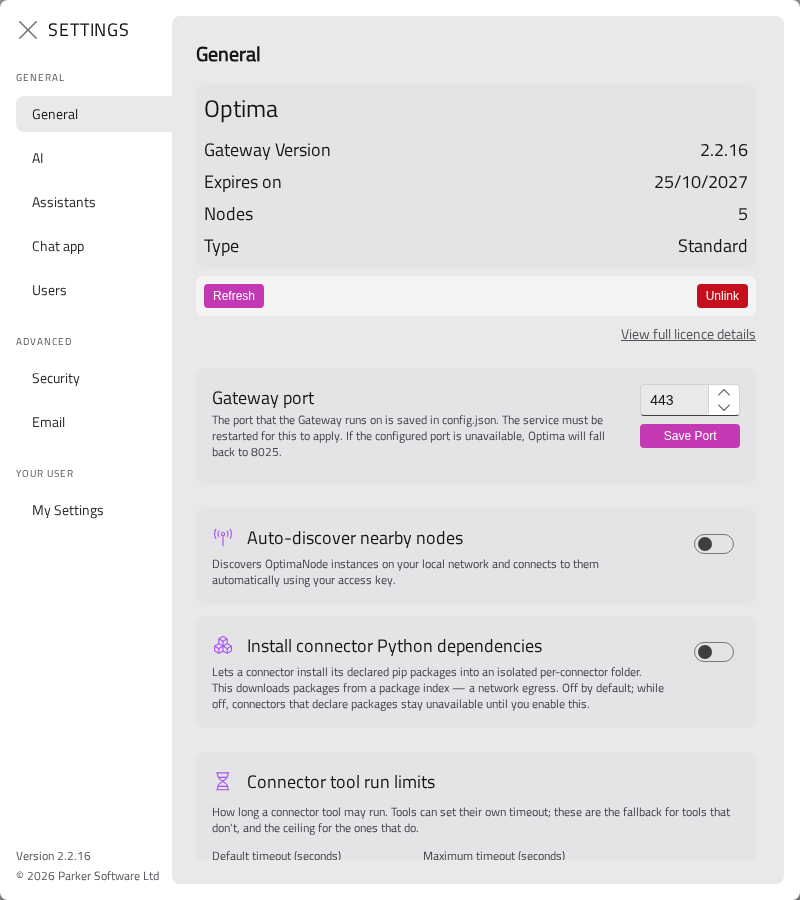
The General section holds the Gateway's licence summary, network options, limits and developer options.
Licence
A summary of the Gateway's licence: Gateway Version, the licence Type, the number of Nodes it allows, and when it Expires.
- Refresh checks the licence with Parker Software now.
- Unlink releases the licence from this Gateway, so it can be used elsewhere.
- View full licence details opens everything about the licence. See Licensing.
Gateway Port
The port the Gateway listens on. Enter a new port and click Save Port, then restart the Gateway service — for example, with Restart in the installer's Manage page. If the port is unavailable when the Gateway starts, it will use port 8025 instead. See Certificates and Security.
Auto-Discover Nearby Nodes
When this is on, the Gateway will find Nodes on your local network and connect to them by itself, using your Node access key. See Managing Nodes.
Connector Packages And Environment
These settings need the Connector Dependencies permission, because they decide what Connector code can install on the Gateway's machine and what of its environment it can read.
| Setting | What it does |
|---|---|
| Install connector Python dependencies | Lets Connectors install the Python packages they declare. Package index URL points them at your own package mirror instead of the public one. See Setting Up the Gateway for Connectors |
| Connector tool environment | Tools run with a minimal set of environment variables, so credentials in the Gateway's own environment stay out of their reach. List any other variable names every tool should see, separated by commas |
Tool And Agent Limits
These settings stop a single request from running for too long or taking too many steps.
| Setting | What it does |
|---|---|
| Connector tool run limits | Default timeout (seconds) — how long a tool may run if it does not set its own time. Maximum timeout (seconds) — the most any tool may have |
| Agent tool iterations | How many rounds of tool calls the AI may take in one turn before it must answer. Default limit applies to chats and Assistants that do not set their own (0 = no limit). Maximum on the API caps API requests and Scheduled Tasks, which have no Stop button |
| Agents | Lets Assistants hand tasks to other Assistants. Agents per turn on the API caps how many one API request may start. See Assistants |
| Images in chat | Longest edge (pixels) — images attached in chat are scaled down to this before they are stored. Larger keeps small text legible; smaller costs fewer tokens |
Analytics Recording
Record usage for Analytics keeps a record of each request — who made it, which model answered, how many tokens it used and how it ended. It never records what anyone wrote or what a model replied. Keep individual requests for (months) sets how long the detailed records are kept; daily totals are kept indefinitely. See Analytics.
Public Address Of This Gateway
The address people use to reach the Gateway in a browser, such as https://optima.yourcompany.com. This is only needed when an outside service has to send someone back to the Gateway — for example, after signing in to another system for a Connector. Leave it blank otherwise.
Advanced Developer Features
Turn this on to show options for troubleshooting and testing:
| Setting | What it does |
|---|---|
| Enable System Tracing | Records detailed traces of the Gateway's work. Turns itself off when the Gateway restarts. See Diagnostics |
| Enforce connector tiers | Stops Professional and Mixed Connectors being installed on a Gateway whose licence does not include Professional Connectors. Off by default. See Installing a Connector |
| Large Task planner model | The model that writes plans for Large Tasks. See Scheduled Tasks |
| Manage KV Store | Opens the Gateway's internal settings store. Change it only when Parker Software support asks you to |

AI
The AI section controls the built-in abilities Optima gives to models, and defaults for documents and Knowledge Bases.
AI Memory
Enable AI memory lets models look through a person's earlier conversations for relevant information. Each person's memory covers only their own conversations.
- Available on — Chat (on by default) and API (off by default). Turning on API means anyone holding a user's API Key can search that user's conversation history.
- Match threshold — how close a past conversation must be to count. Higher finds fewer, closer matches.
- Search index — how many conversations are indexed. Recompute all rebuilds the index.
An Assistant must also allow AI memory on its Tools tab. See Assistants.
What Models Are Told
These settings give models useful context or abilities. When on, they apply to chats with a model directly; each Assistant chooses which of them it uses, on its Tools tab. Turning one off here turns it off everywhere.
| Setting | What it does |
|---|---|
| Let models list their own tools | Lets a model answer "what can you do?" accurately from the tools it really has |
| Tell models who they are talking to | Adds the person's name, so the model can address them and sign letters for them |
| Tell models the date and time | Adds the current date and time. Without it a model will confidently give the wrong year |
| Tell models what device they're on | Adds the person's device and operating system, so instructions fit their computer. Only the desktop and mobile apps report this |
| Let models show web pages | Gives models a tool that opens a web page beside the chat. The model never reads the page — it only shows it |
Warning
A person's name helps the model, but it is not proof of who they are: a person can type something different. Never write Assistant instructions such as "only do this for Jane".
MCP Connectors
Allow MCP connectors is the master switch for MCP Connectors. When it is off, every MCP tool is withdrawn from every Assistant and no MCP server is contacted at all. Nothing is deleted, so turning it back on will restore them.
Show a directory of MCP servers shows the directory on the Connectors page. Registry to browse chooses which registry it reads; leave it blank for GitHub's MCP registry. See Adding an MCP Connector.
Document Defaults
Click Set Defaults to choose which converter turns each kind of uploaded document into text, for types that have more than one. Most installations have nothing to choose here.
Knowledge Base
Defaults for every Knowledge Base. See Knowledge Bases.
Assistants
The Assistants section holds two Gateway-wide settings for Assistants. It needs the Assistant Admin permission.
| Setting | What it does |
|---|---|
| Only allow assistants | People can only chat through Assistants shared with them, and cannot pick a model directly — in chat, through the API, or in model lists. Assistant administrators keep direct access so they can build and test |
| Allow switching mid-conversation | On by default. Lets people change a conversation's Assistant or model after it has started. When off, a conversation keeps what its first message used |
See Assistants.
Chat App
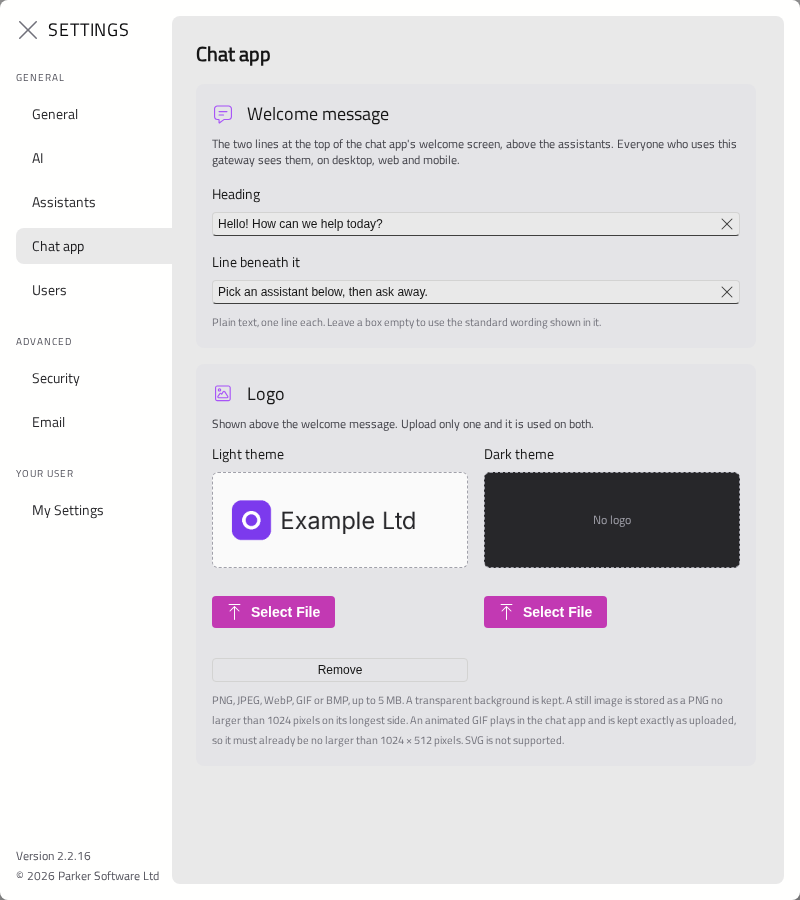
The Chat app section sets what people see on Optima Chat's welcome screen. Only Admin accounts see this section.
Welcome message — a Heading and a Line beneath it. Leave either blank to use Optima's own wording. Each saves when you click away from the box.
Logo — an image for the Light theme and one for the Dark theme. If you upload only one, it will be used for both. PNG, JPEG, WebP, GIF and BMP are accepted, but not SVG. An animated GIF plays as it is.
Running copies of Optima Chat will pick up changes shortly afterwards, without needing to restart.
Users And Security
See Users and Permissions, API Keys and Certificates and Security.
Optima sends email for new accounts and password resets. Without it, administrators must pass temporary passwords on by hand. This section needs the Email permission.
- Turn on Enable outbound email.
- Enter your mail server's SMTP Host and Port.
- Leave Use STARTTLS ticked for most servers. Untick it for servers that use SSL from the start, typically on port 465.
- Tick Allow self-signed certificate only if your mail server uses one.
- Enter the From Address and From Name, and the Username and Password if your server needs them.
- Click Save.
Click Send a test email to check that it works.
Under Templates, you can change the Subject and HTML body of each email Optima sends. Preview shows the result; Revert to default restores Optima's own wording.
My Settings
Every user has this section, for their own preferences.
| Setting | What it does |
|---|---|
| Enable Animations | Animations in the Gateway's pages |
| Theme | Light, dark, or automatic to follow your device |