Configuring A Connector's Tools
Each Optima Connector is a set of tools. On the Connector's Configure window, the Configure tab lists them, and shows each tool's settings when you select it. You can see what each tool does and takes, and set any values its author left for you to fill in. You will need the Optima Connectors permission.
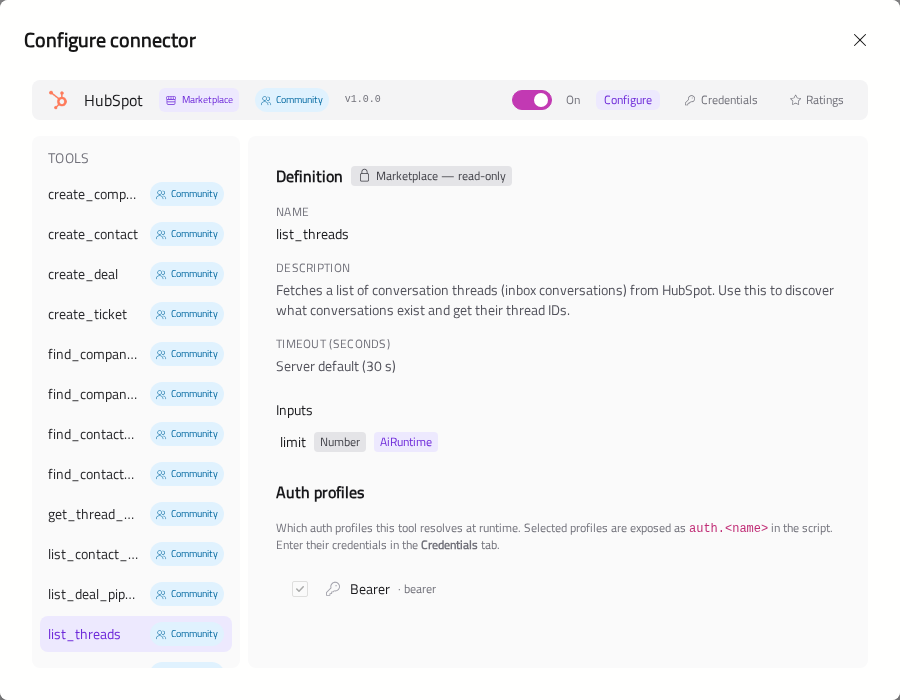
For a Connector installed from the marketplace, the tool's definition is marked Marketplace — read-only: its name, description, inputs and timeout are the author's. What you can set is its Input values. For a Connector built or imported on this Gateway, everything is editable in the connector editor — see Building Connectors.
What Each Tool Shows
When you select a tool, the following parts will be shown:
| Part | What it shows |
|---|---|
| Name and Description | What the tool is called, and what it does |
| Timeout (seconds) | How long one run of the tool may take. See Timeouts |
| Inputs | What the tool takes. Each input shows its type and who supplies it, and whether it is required. Inputs that name a file or folder are marked reads, writes or read before write |
| Auth profiles | Which of the Connector's credentials the tool uses |
| Input values | Values you set for the tool. Only shown when the tool has any |
Each tool is also marked Community or Professional. See Community, Mixed and Professional.
Input Values
A Connector's author can leave some of a tool's inputs for you to fill in — for example, your company's account number, or which region its servers are in. What your value does depends on the kind of input:
- A Constant input always uses your value. The AI never sees it and cannot change it.
- A Both input uses your value unless the AI chooses a different one. The AI sees your value as the default.
Enter the values and click Save values. They will apply to everyone who uses the tool.
Warning
Use input values for settings, not secrets. Keys and passwords belong on the Credentials tab, where they are encrypted.
Timeouts
A tool that runs longer than its timeout will be stopped, and the AI will be told it timed out, so that it can try something else.
The tool's author sets its timeout:
| Shown as | Meaning |
|---|---|
| Server default | Uses the Gateway's Default timeout, 30 seconds unless you change it |
| A number of seconds | That long, up to the Gateway's Maximum timeout |
| No limit | Runs until it finishes, or someone presses Stop |
Both limits are in Settings → General → Tool and agent limits. See Settings.
Note
No limit only applies where someone can press Stop — in chat. On the API and in Scheduled Tasks, which have no Stop button, the tool is held to the Maximum timeout instead.