OAuth Sign-In Connectors
Some services do not issue keys. Instead, Optima signs in to them the way an app does, using OAuth: you register Optima as an app with the service, then sign in once and approve what it may do. The Connector will then use that sign-in each time one of its tools runs.
Before You Start
The service will send you back to the Gateway after you sign in, so it needs an address it can reach. If people reach the Gateway through a reverse proxy, or at a different address from the one it runs on, set Public address of this gateway in Settings first.
Until the Gateway knows its address, the Credentials tab cannot show the callback URL, and says so.
Setting One Up
To set up an OAuth sign-in:
- In Optima, open the Connector's Configure window and go to Credentials. Copy the Callback URL to register with the provider.
- At the other service, register a new app:
- add the callback URL as a redirect URI, exactly as shown — it must match character for character
- give it the permissions the Connector's page lists
- create a client secret
- In Optima, enter the app's Client ID and Client secret, and click Save.
- Click Connect, sign in to the service in the window that opens, and approve the permissions.
- Click Test connection to check it works.
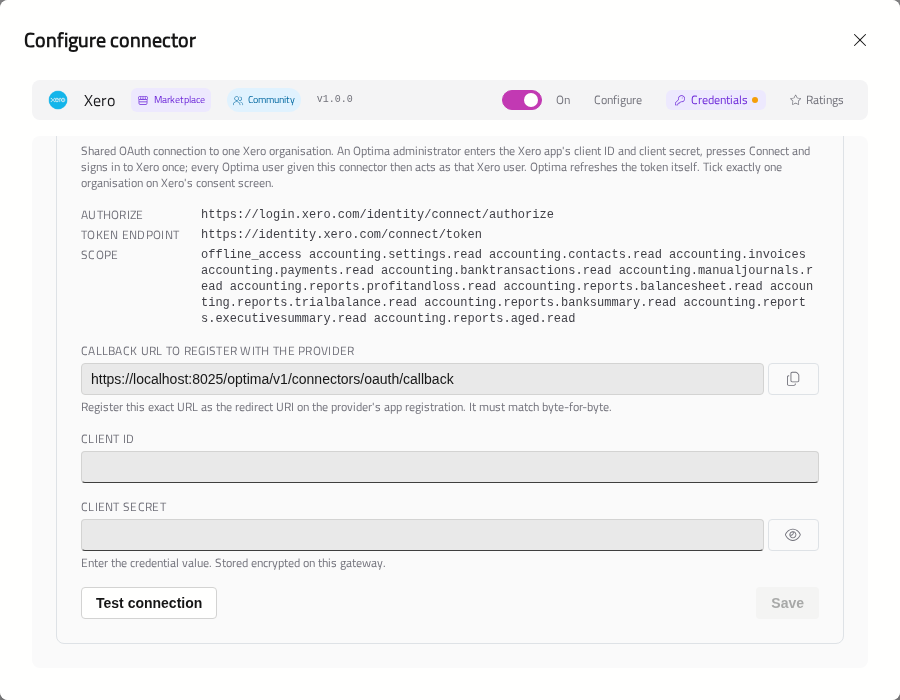
The tab also shows, read-only, the service's addresses and the permissions (Scope) the Connector asks for.
While You Sign In
Optima will wait up to 5 minutes for the sign-in window to finish. You may see one of the following:
- Your browser blocked the sign-in popup — click Open the sign-in page to continue in a new tab, or allow popups for the Gateway.
- Connect only works from this gateway's public address — you are browsing the Gateway at a different address from its public one. Click Open this page at the public address and connect from there.
- Stop waiting — gives up on this sign-in. You can click Connect again.
Note
Save your changes before clicking Connect, Disconnect or Test connection. All three use the values saved on the Gateway, not what is on screen.
Connectors That Sign In As An App
Some services let an app sign in as itself, without a person approving it. This is called client credentials. These Connectors show oauth client_credentials on the Credentials tab.
Enter the Client ID and Client secret and click Save. There is no Connect step. Test connection will fetch a token once to check them.
Who The Connector Acts As
The account that clicks Connect is the account the Connector will use for every person who can use it.
Warning
One sign-in is shared by everyone. Outside Assistants, everyone on the Gateway can use the Connector. If you connect Outlook with your own account, everyone will be able to ask the AI to read your mailbox.
Connect with an account set up for this purpose rather than a person's own. To limit who can use the Connector, give it only to the Assistants that need it and turn on Only allow assistants. See Who Can Use Connectors.
Optima Connectors cannot yet sign in separately for each person. MCP Connectors can — see Signing In to MCP Connectors.
Reconnecting And Disconnecting
If the sign-in stops working — for example, the account's password changed or the service revoked access — the Connector will show Not connected. Open Credentials and click Connect again.
Disconnect deletes the sign-in stored on the Gateway. It does not revoke Optima's access at the service; do that in the service's own settings if you need to.
Connectors That Use OAuth Sign-In
The following Connectors sign in with OAuth:
| Connector | Sign in at | What it acts as |
|---|---|---|
| Xero | Xero | The Xero organisation chosen when connecting |
| Outlook | Microsoft Entra ID | The mailbox of the account that connected |
| SharePoint | Microsoft Entra ID | The sites and files that account can see |
| Teams | Microsoft Entra ID | That account's chats, including sending messages as it |
The three Microsoft Connectors need a work or school account. Personal Microsoft accounts are not supported.