Scheduled Tasks
A Scheduled Task gives an AI model an instruction to carry out on a timetable — for example, "every weekday at 8:00, check the support queue and summarise anything urgent". Tasks can use tools, so they can fetch information and act on it without anyone in the chat. You can create as many Scheduled Tasks as you need, each with its own model, tools and schedule.
Tasks are managed on the Tasks page, from the menu. You need the Scheduled Tasks permission.
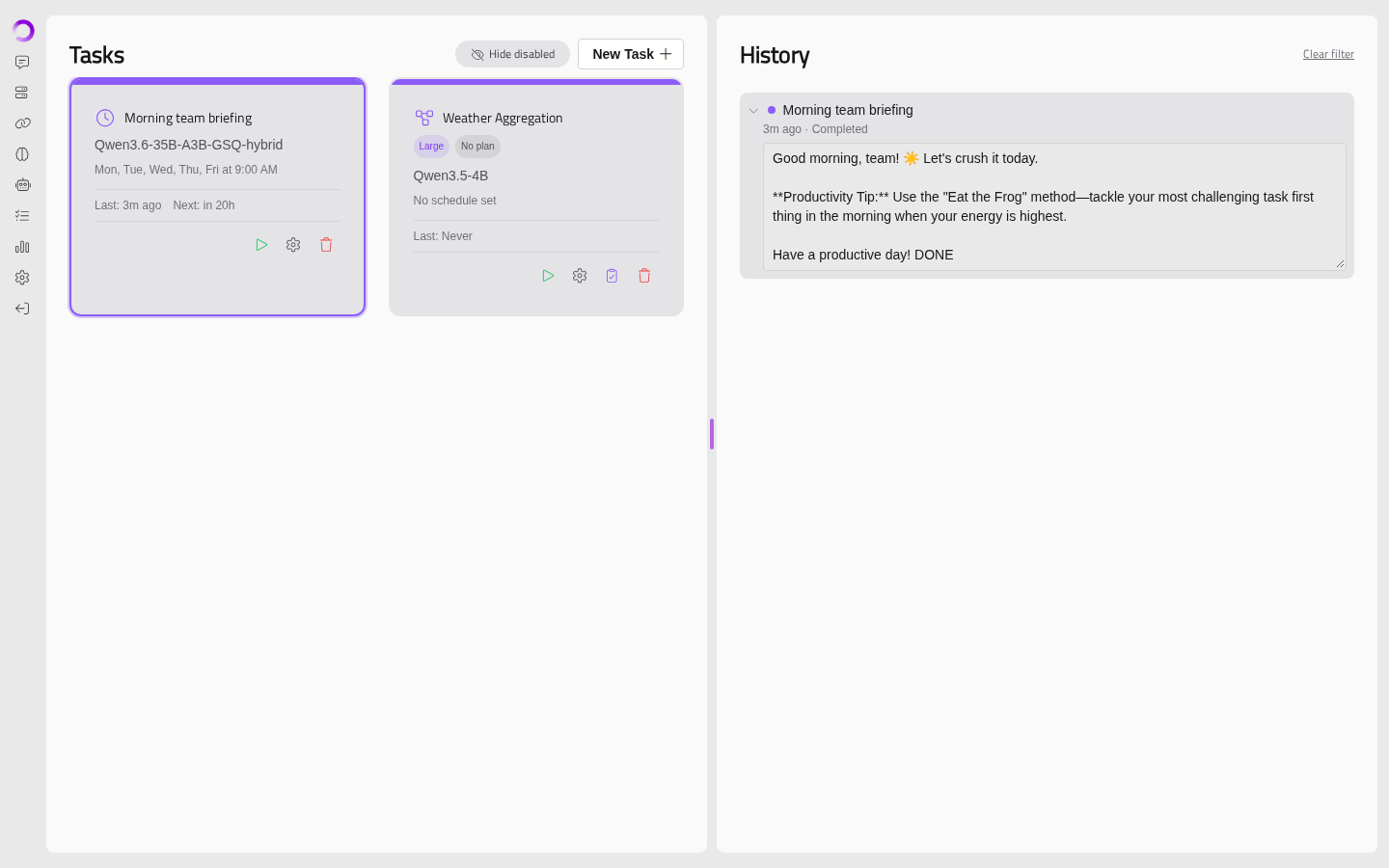
Each task is shown as a card with its model, its schedule, and when it last ran and will next run. Select a task to see its run History on the right. Tick Hide disabled to hide tasks that are switched off.
From a card you can run the task now, edit it, or delete it.
Kinds Of Task
There are two kinds of Scheduled Task:
| Kind | What it is |
|---|---|
| Prompt | One instruction, run on a schedule. Most tasks are this kind |
| Large Task | One large goal — such as "find every country's football squad" — which Optima breaks down into a plan of many steps. You review and approve the plan before anything runs. See Large tasks |
A task's kind cannot be changed once it exists.
Creating A Prompt Task
A Prompt Task runs one instruction on a schedule. Click New Task. The window has three steps: Details, Tools and Schedule.
Details
| Field | What it is |
|---|---|
| Name | What the task is called |
| Enabled | Untick to stop the task running on its schedule |
| Kind | Prompt |
| Instruction Prompt | What the model should do each time the task runs |
| System Prompt | Optional background instructions, such as the tone or format to use |
| Model | The model that carries out the task. Only models running now are listed |
| Completion | Optional. A Marker Optima looks for in the model's final answer to decide whether the run succeeded, and how to match it: the answer StartsWith, Contains or EndsWith the marker, or matches it as a Regex |
A completion marker lets a task report failure. For example, tell the model to finish with DONE when it has completed the work, and set the marker to DONE with EndsWith.
Tools
Tick the tools the task may use. You can use Search tools... to find them.
Note
Tools that ask permission before they run are never available to a Scheduled Task — there is nobody to answer.
Schedule
| Mode | Use it for |
|---|---|
| Weekdays | Chosen days of the week, at a set Time |
| Months | The 1st of chosen months, at a set Time |
| Custom | Any timetable, written as a Cron expression — for example 0 8 * * 1-5 for 8:00 every weekday |
Tasks start on the minute, in the Gateway's time zone.
Click Save to create the task.
Running A Task Now
Click the run button on a task's card and confirm with Run. The run will appear in the task's History.
How A Task Runs
A task runs on the Gateway with nobody watching, so some limits apply:
- As its owner. A task runs with the reach of the person who created it: their tools and their connected accounts.
- With limits. A task run is capped by the Gateway's Maximum on the API for tool iterations (Settings → General), and stops after 30 minutes.
- Without AI memory or Knowledge Base search. These are not offered to scheduled runs.
Tasks That Use Someone's Personal Tools
If a task uses tools that act as its owner — their mailbox, for example — only the owner can change what it does. Other people with the Scheduled Tasks permission can still pause, resume, run and delete it.
Large Tasks
A Large Task is for a big, repetitive job. There are two things to know before you start:
- Large Tasks need a planner model, set in Settings → General → Advanced Developer Features → Large Task planner model.
- A Large Task runs when you start it from its card, not on a schedule.
A Large Task starts from a Goal in your own words. Optima's planner will turn the goal into a plan: a sequence of steps, some of which repeat for every item in a list. For example, find the list of countries, then look up each country's squad, then export the results.
- Create a task with the kind Large Task, and enter its Goal, Planner model and Model.
- On the card, click Review and approve the plan. Click Generate plan and wait for it — you can close the window while it works.
- Read the plan. It shows each step, how many items the first run covers, and which steps change things outside the task (these are clearly marked). Click Edit to adjust it, or Regenerate to start again.
- Click Approve.
A plan must be approved before it runs, and approved again whenever its steps change. Its status shows Awaiting approval, Approved or Needs re-approving.
While a Large Task runs, its Job panel replaces the history. It shows each step's progress and results, and lets you pause, resume or cancel the job. Click Export CSV to download the results.
Deleting A Task
Click the delete button on a task's card and confirm.
Warning
Deleting a task cannot be undone.