Signing In
You sign in to Optima Chat with the username and password your administrator gave you. How you sign in depends on whether you use the web browser version or one of the apps.
In A Web Browser
The browser version uses the Optima sign-in page. Enter your Username and Password and click Login. You will be taken straight into the chat, and you will stay signed in until you click Logout.
In The Desktop And Mobile Apps
The first time you open the app, you will need to tell it where your Optima server is:
- Click Advanced below the sign-in form.
- In Server, enter your Optima address — for example
optima.yourcompany.com. Leave outhttps://. - Change Port only if your administrator gave you one. The usual value is
443.
The app will remember these, so you only need to do this once.
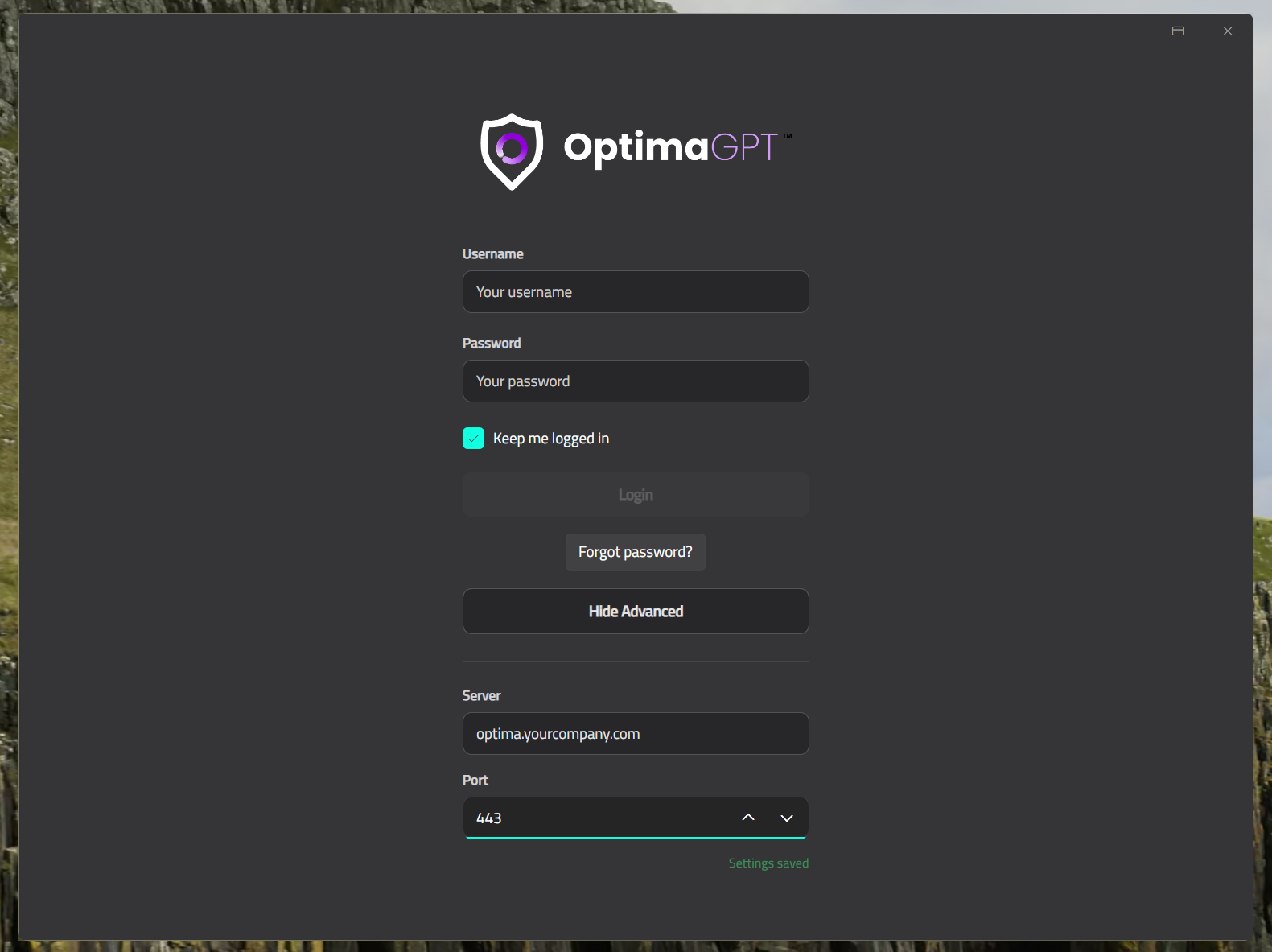
Then enter your Username and Password and click Login.
On a computer, Keep me logged in is ticked by default, so the app will sign you in by itself next time. Untick it if other people use your computer.
When The App Opens
The app will show a loading screen while it checks that you are still signed in. If the server takes a while to answer, the screen will say which server it is trying to reach.
If the server cannot be reached, the app will say so and keep you signed in. Click Try again once the server is back. You do not need to enter your password again.
Trusting Your Server's Certificate
Some organisations use a security certificate for their Optima server that your device cannot check for itself. The first time the app connects to such a server, it will ask whether to trust it.
Check that the Host is your Optima address. If your administrator has given you a fingerprint to compare, check that too. Then click Trust. The app will remember your choice for this server.
If you see Certificate has changed instead, the server is presenting a different certificate from the one you trusted before. That can be expected — for example, after your administrator renews it — but it can also mean someone is intercepting the connection. Click Cancel and check with your administrator before you click Trust new certificate.
If You Have Forgotten Your Password
In the desktop and mobile apps:
- Enter your Username.
- Click Forgot password?
If your administrator has set up email for Optima, a temporary password will be sent to the email address on your account. Sign in with it and choose a new password.
If no email arrives — or you use the web browser, which has no Forgot password? link — ask your administrator to reset your password.
Setting A New Password
When your account is new, or your password has been reset, you will sign in with a temporary password and then be asked to choose your own.
Enter it in New password (at least 8 characters) and again in Confirm new password, then click Set password (in the web browser, Set password & sign in).
Note
Temporary passwords expire. If yours no longer works, ask your administrator for a new one.
Signing Out
To sign out, click Logout in the sidebar.
Connecting To A Different Server
To point the app at a different Optima server, click Logout, then use Advanced on the sign-in screen to enter the new address.