Installing A Connector
Optima Connectors are installed from the connector marketplace, on the Gateway's Connectors page. The marketplace lists Connectors published by Parker Software and other publishers, with their tools, versions and ratings. You will need the Optima Connectors permission.
Server Connectors need the Gateway's Python runtime. If the page shows Python runtime is not ready, install it first: see Setting Up the Gateway.
Finding A Connector
The marketplace is under Available, below your installed Connectors.
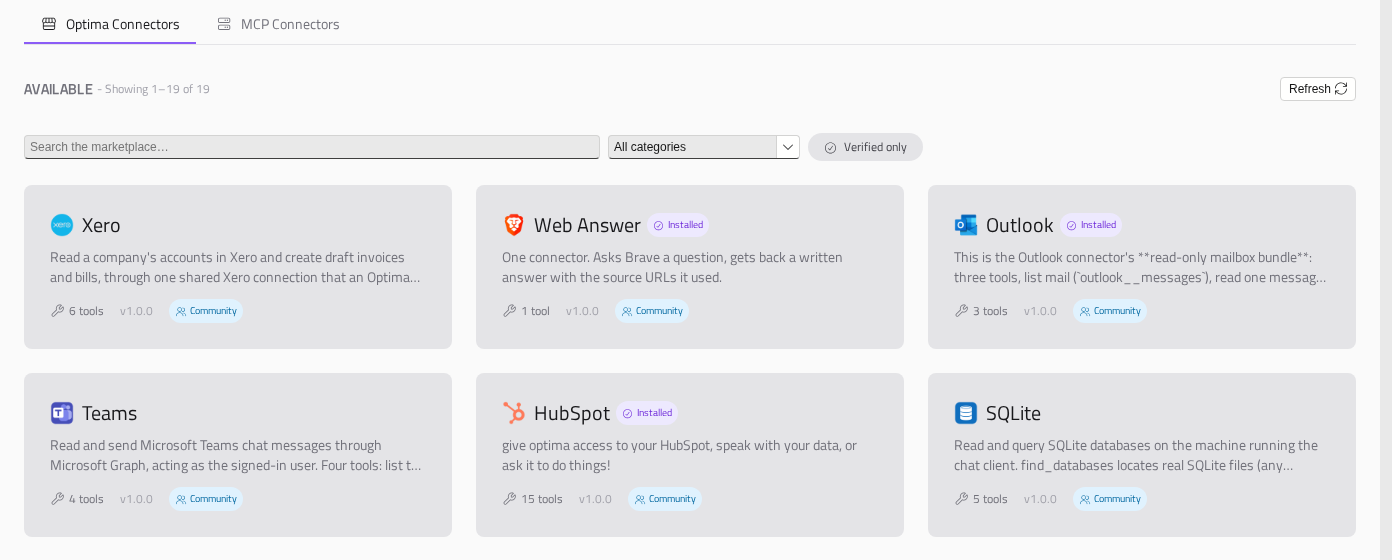
You can narrow the list in the following ways:
- Search the marketplace… searches names and descriptions.
- All categories narrows the list to one category.
- Verified only shows only Connectors from publishers the marketplace has verified, marked with a blue tick.
Each card shows the Connector's publisher, description, number of tools, version, star rating and tier. A Connector already on this Gateway is marked Installed.
Community, Mixed And Professional
The tier badge on a card says which of a Connector's tools are free:
| Badge | Meaning |
|---|---|
| Community | Every tool is free |
| Mixed | Some tools are free and some are Professional |
| Professional | Every tool is Professional |
A Connector with no badge has no tier recorded.
Professional tools need a licence that includes Professional connectors — the Licence page shows whether yours does. See Licensing.
Installing is only blocked when Enforce connector tiers is on, in Settings → General → Advanced Developer Features. It is off by default. When it is on, Professional and Mixed Connectors will be greyed out with a padlock on a Gateway whose licence does not include them, and their install button will read Not included in licence. Connectors that are already installed, and updates to them, are never blocked.
Installing
To install a Connector:
- Click the Connector's card to see its details:
- its publisher, author, licence and the date it was published
- Version — when there is more than one, choose which to install. The newest is chosen for you
- Reads environment variables — any variables from the Gateway's environment its tools can see. See Environment variables
- Tools, each marked Community or Professional
- Ratings from other customers
- Click Install and the version number.
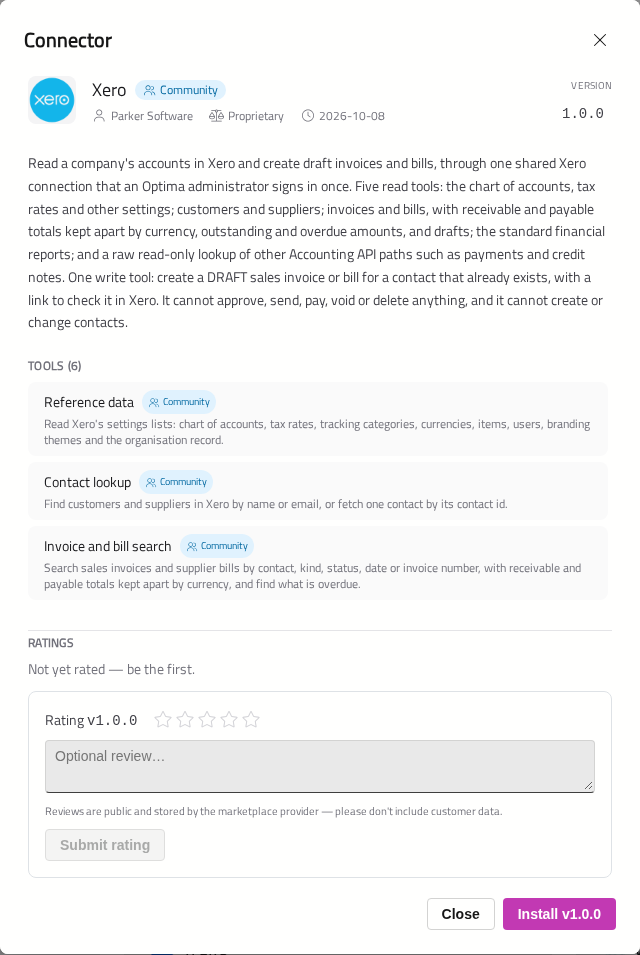
The Connector will appear under Installed. If it needs credentials, its Configure window will open straight away on the Credentials tab.
If the Connector declares Python packages, they must be installed before its tools appear. See Python packages.
Adding Its Credentials
If the Connector signs in to another system, its card says so — for example, Needs credentials. To add its credentials:
- On the Connector's card, click Configure.
- Open the Credentials tab.
- Enter what the Connector asks for, and click Save.
- Click Test connection to check it works, where offered.
Credentials are stored encrypted on this Gateway. They are yours, not the Connector author's, and never travel with the Connector.
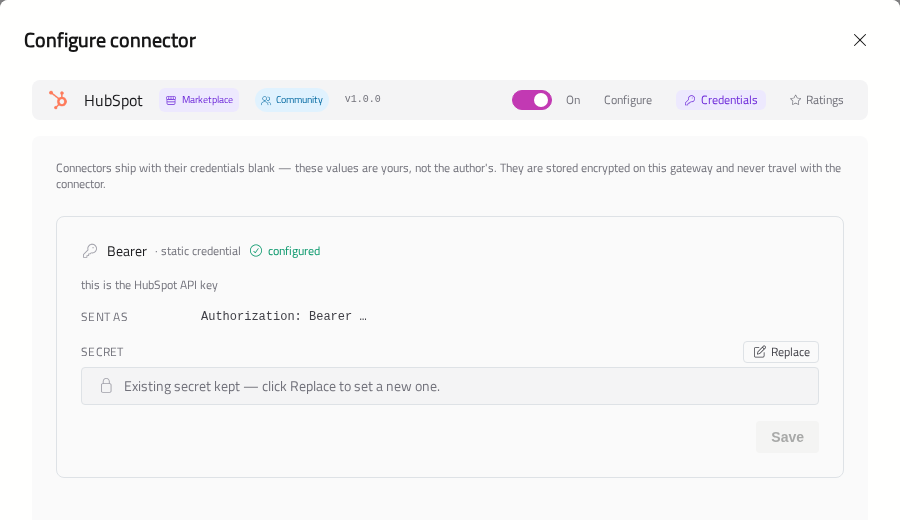
What to enter depends on the Connector. See API Key Connectors, OAuth Sign-in Connectors, and the Connector's page in the Connector Catalogue.
Each credential shows its state:
| State | Meaning |
|---|---|
| configured | Ready to use |
| not configured | A credential is missing. Enter it and save |
| not connected | OAuth sign-in only: click Connect and sign in |
| unreadable — re-enter | This Gateway can no longer decrypt the stored value — usually because its database was moved or restored without its configuration file. Enter it again |
| cannot be configured here | The Connector was published without a value only its author can set. Contact the publisher, or install an updated version |
| not supported | The Connector uses a kind of sign-in this version of Optima cannot store yet. Its tools that need it will fail |
| not used by any tool | Nothing needs it. You can leave it blank |
For what the warnings on a Connector's card mean, see Troubleshooting.
Switching A Connector Off
A Connector has an On / Off switch. It is in the Connector's Configure window, beside the tabs, or — for a Connector built or imported on this Gateway — in the editor's tool settings window.
Off withdraws all of the Connector's tools — from chats, Assistants, Agents, Scheduled Tasks and the API — but keeps its settings and credentials, so switching it back on will restore it as it was. Assistants keep their grant, marked Off.
You can use it to take a Connector out of use for a while without losing its setup.
Updating
When a newer version is published, the Connector's card will show Update available and the version. To update:
- Click Update available.
- Check what has changed — the tools, and any new environment variables.
- Click Update to and the version number.
Updating keeps the credentials you entered, unless the new version changes how the Connector signs in. In that case, enter them again.
Going Back To An Earlier Version
If an update causes a problem, you can go back. In the same window, choose an earlier version from Version. The button will change to Switch to and the version number.
Rating A Connector
You can rate the Connectors you use, to help other customers. Open a Connector's Configure window and its Ratings tab, or the details of a marketplace Connector. Choose one to five stars, add a review if you like, and click Submit rating. Rating again replaces your earlier rating for that version.
Warning
Reviews are public and stored by the marketplace. Do not include customer data or anything confidential.
Removing
Click the bin on the Connector's card and confirm Delete. The Connector, its tools, its settings and its credentials will be removed, and this cannot be undone. Assistants that had it will lose it.
To take a Connector out of use but keep its setup, switch it Off instead.
Who Can Use It
Once a Connector is installed and switched on, everyone on the Gateway can use it when they chat without an Assistant: in the desktop app, in web and mobile chat, and through the API. There is no list of people for an Optima Connector.
To decide who gets a Connector, give it to Assistants instead, and turn on Only allow assistants in Settings. See Who Can Use Connectors.