Settings And Shortcuts
You can change how Optima Chat looks and behaves in Settings, and install the optional extras that run on your device.
Click Settings in the sidebar. On a computer with a wide window, Settings will open in its own window. Otherwise it will take over the app until you go Back. Press Esc to close it.
Some sections only appear where they can be used, as the table shows.
| Section | Desktop | Phone and tablet | Web browser |
|---|---|---|---|
| General | Yes | Yes | Yes |
| Connectors | Yes | — | — |
| AI Models | Yes | Yes | — |
| Tool activity | Yes | — | — |
| My Settings | Yes | Yes | Yes |
| Connected accounts | Yes | Yes | Yes |
General
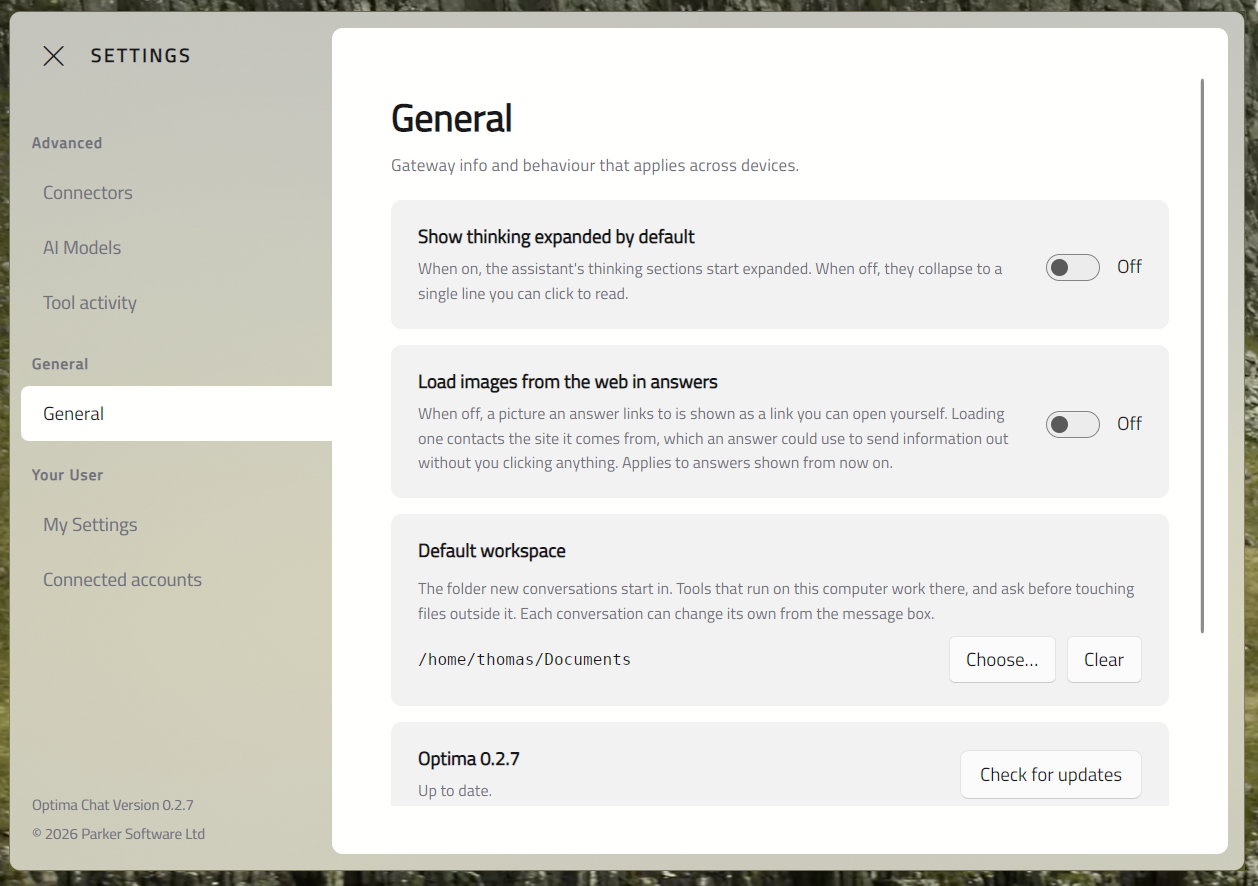
The General section holds settings for your answers, your Workspace and your conversations:
| Setting | What it does |
|---|---|
| Show thinking expanded by default | Opens a model's thinking in every answer, instead of folding it to one line |
| Load images from the web in answers | Off by default. When off, a picture an answer links to is shown as a link instead. See Reading Answers |
| Default workspace | Desktop only. The folder new conversations start in — your Documents folder until you change it. Click Choose… to pick another, or Clear to start new conversations with no Workspace. See Using Tools |
| Check for updates | macOS and Linux only. See Getting the App |
| Delete all conversations… | Deletes every conversation you have, with its messages and attachments, on all your devices. This cannot be undone |
Connectors
Desktop only. Some tools run on your own computer, using a small Python runtime called the Optima Python Runtime. This section shows whether it is installed, and lets you install, update or reinstall it.
Choose a specific version lets you install an older version, if your administrator asks you to.
Environment variables for tools — tools that run on your computer are given only a small, safe set of your computer's environment variables. If a tool needs another one, add its name here, separating names with commas. The default, SSH_AUTH_SOCK, lets tools use your SSH agent. Click Reset to default to go back.
AI Models
The Embedding model is a small AI model (about 25 MB) that runs on your device. It lets Optima Chat pick tools automatically from what you type, and search your conversations by meaning. You can install it here if you skipped it when you first signed in.
Tool Activity
Desktop only. This section keeps a record of every tool call this computer has seen, whether the tool ran on the Optima server or on this computer. Each entry shows what was sent and what came back, and any decision made — for example, a file outside the Workspace that you allowed.
Use the search box and the filters (Everything, Needed a decision, Denied or refused, Errors, Ran on this device) to find an entry. Export… saves the log to a file, and Clear log empties it.
The log is kept on this computer only, for 30 days. Passwords and keys that tools use are never recorded.
My Settings
These settings control how the app looks on this device:
| Setting | What it does |
|---|---|
| Theme | System follows your device's light or dark mode, or choose Light or Dark |
| Use system accent colour | Uses your device's highlight colour in the app |
| Enable Transparency Effects | Desktop only. Blurs the window background, where your system supports it |
| Enable Window Border | Windows and Linux only. Draws a border round the window |
Connected Accounts
Some tools act as you in another system, such as your mailbox or calendar. This section lists those systems and whether you are connected.
Click Connect to sign in to one. A browser page will open for you to sign in. Click Disconnect to remove a connection. Reconnect means a connection has lapsed and needs you to sign in again.
If the list is empty, there is nothing on your Optima server that needs your own account.
Keyboard Shortcuts
You can use the following keyboard shortcuts in Optima Chat:
| Keys | What they do |
|---|---|
| Enter | Send your message |
| Shift+Enter | New line in your message |
| Esc | Stop the answer being written. Also closes Settings and dialogs |
| Ctrl+N | New chat |
| Ctrl+F | Search conversations |
| Ctrl+K (⌘K on a Mac) | Quick picker: find any Assistant, model or group |
| Ctrl+1–Ctrl+9 (⌘1–⌘9) | Pick a card on the welcome screen, or start a new chat with it |
| Alt+1–Alt+9 (⌥1–⌥9) | Pick a group on the welcome screen |
| Ctrl+V (⌘V) | Paste text, or attach a copied file or image |
| Ctrl+C (⌘C) | Copy selected text |
Note
In a web browser, some shortcuts belong to the browser. Use Alt+1–Alt+9 to pick cards, and Ctrl+K to reach a group.