Controls Panel
The Controls card shows what you are chatting with, and lets you adjust how it works for the current conversation.
To open it on a computer, click the sliders icon on the right-hand edge of the window. On a phone, or in a narrow window, drag up the bar above the message box and choose Controls.
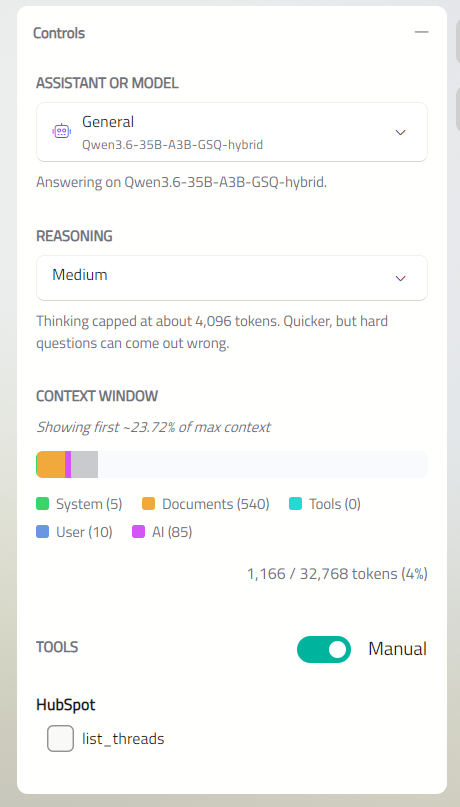
The card has up to five sections. A section only appears when it applies. For example, Agents only appears for an Assistant that has Agents.
Assistant Or Model
This section shows what the conversation is talking to. Below it, Answering on names the AI model doing the work. If it says (fallback), the Assistant's usual model is not running and a stand-in is answering.
Before you send your first message, choosing here is the same as clicking a card on the welcome screen. In a conversation already under way, choosing here will switch the rest of the conversation to the new Assistant or model.
If your administrator has turned switching off, the choice will be locked once the conversation has started, and the card will say This conversation keeps what it started with. Start a new chat to use something else.
Note
A conversation can also become read-only — for example, if the Assistant it uses is removed or no longer shared with you while switching is off. You can still read it, but you will need to start a new chat to carry on.
Reasoning
Some models can think a problem through before they answer. With these, a Reasoning section lets you decide how much:
| Option | What it does |
|---|---|
| Default | The Assistant or model decides |
| Off | No thinking — answers straight away |
| Low | A short think. Quicker, but hard questions can come out wrong |
| Medium | A longer think, still capped |
| High | Thinks as long as it needs |
Lower settings answer sooner. For anything that needs care, such as calculations, multi-step questions or code, leave it on Default or High.
You can also read what the model thought. See Reading Answers.
Context Window
This section shows how much of the model's working memory this conversation is using. See Context Window.
Agents
Some Assistants can hand a task to another Assistant, called an Agent, which works on it separately and reports back. For example, a general Assistant might pass a research question to a research Agent. See Using Tools.
This section lists the Assistant's Agents, each with a short description. Untick an Agent to stop the Assistant using it in this conversation. Agents marked Asks before it runs will ask for your permission each time they are given a task.
The app will remember your choices for each conversation.
Tools
This section lists the tools the AI may use in this conversation. How the list works depends on the switch at the top of the section.
Auto (desktop and mobile apps) — Optima picks the tools that fit each message you type, as many as the model has room for. As you type, Matches for this message shows what it would offer, and Active in this chat shows tools already in use. Auto needs the embedding model. If it is not installed, the section will say so. See Settings and Shortcuts.
All (web browser) — every tool you are allowed to use is offered.
Manual — you choose. Tick the tools you want, grouped by where they come from. Only ticked tools are offered.
Tip
Every tool offered takes up some of the context window, even if the AI never uses it. If you have many tools and a long conversation, choosing Manual with only what you need leaves the most room.
Tools That Need You To Sign In
Some tools work with your own account in another system — for example, your mailbox or calendar. Until you have connected that account, the tools will be listed with Requires sign in. Click Sign in. A browser page will open where you sign in to that system, and the tools will become available.
If a connection has lapsed, the row will say Your sign-in has expired. Click Reconnect. Needs admin sign-in means the connection is your administrator's to set up.
You can see and manage all your connected accounts in Settings → Connected accounts.