Tools And Inputs
A tool is one action the model can take, such as "search issues" or "read a file". Each tool has a name, two descriptions, a list of inputs and a Python script. The model chooses a tool from its descriptions, and fills in its inputs as the tool's arguments.
Adding A Tool
To add a tool to a Connector:
- In the connector editor, on the Tools tab, click +.
-
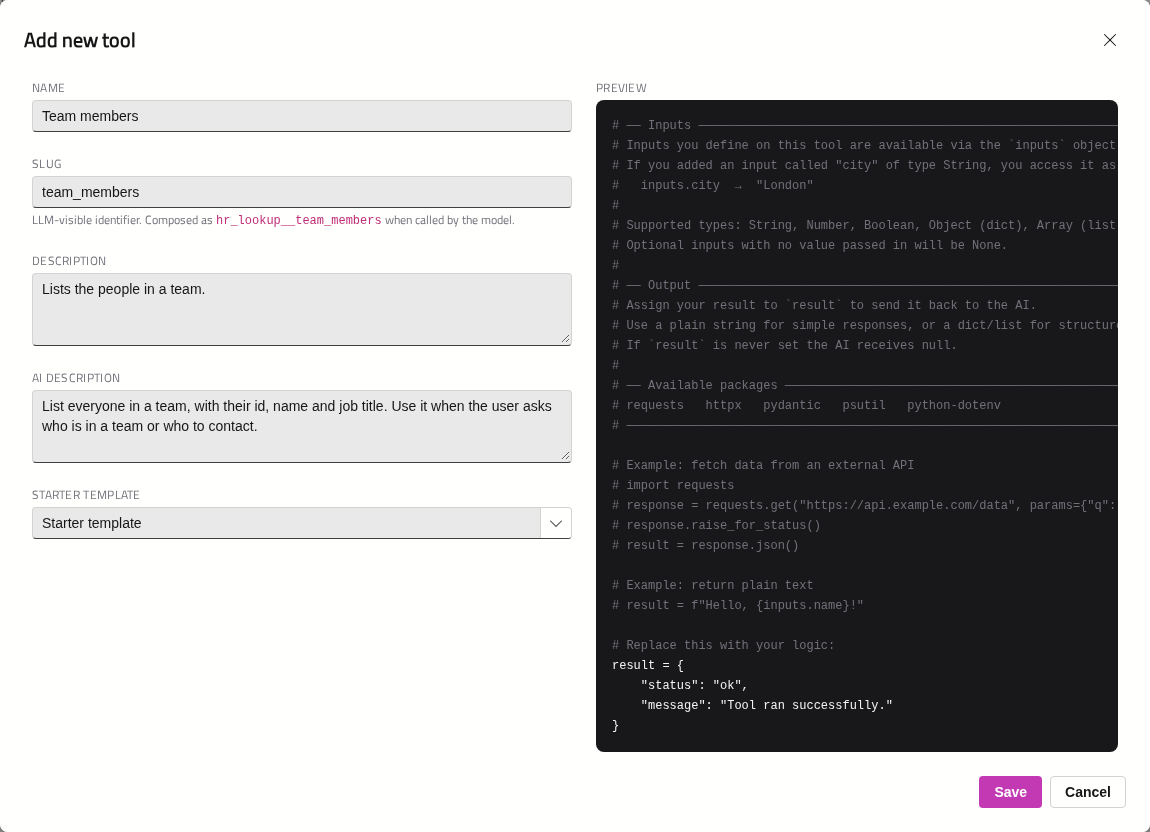
Fill in the Add new tool window:
Field What to enter Name What people see, such as Search issuesSlug The tool's name for the model. Filled in from the name; change it if you like. The full name the model will see is shown beneath it Description One short line for people, shown in tool lists AI Description What the model reads to decide when and how to use the tool. See Writing the AI description Starter template Python to start from, with a preview beside it. Starter template explains the basics in comments. HTTP GET, HTTP POST and System info are small examples. None starts empty -
Click Save. Save stays greyed out until Name, Description and AI Description are filled in.
The tool will be selected, and its Python will open in the code editor.
Note
The HTTP GET template takes an API key as an input, to keep the example short. In a real Connector, keys belong in an auth profile, never in an input.
Slugs
A tool's slug starts with a letter or underscore, and contains only letters, digits and underscores. It is stored in lower case. Use short snake_case verbs — for example, read_file, search_issues or create_invoice. Each tool on a Connector needs a different slug.
The model sees {connector slug}__{tool slug} — for example, acme_tracker__search_issues. Keep the whole name under 64 characters.
Like the Connector's slug, a tool's slug cannot be changed once the tool exists. To change it, add a new tool and delete the old one.
The Tool's Settings Window
Everything about a tool except its Python is edited in the tool's settings window. Point at the tool in the editor's sidebar and click its pencil. The window will open beside the editor, and follows whichever tool you select there.
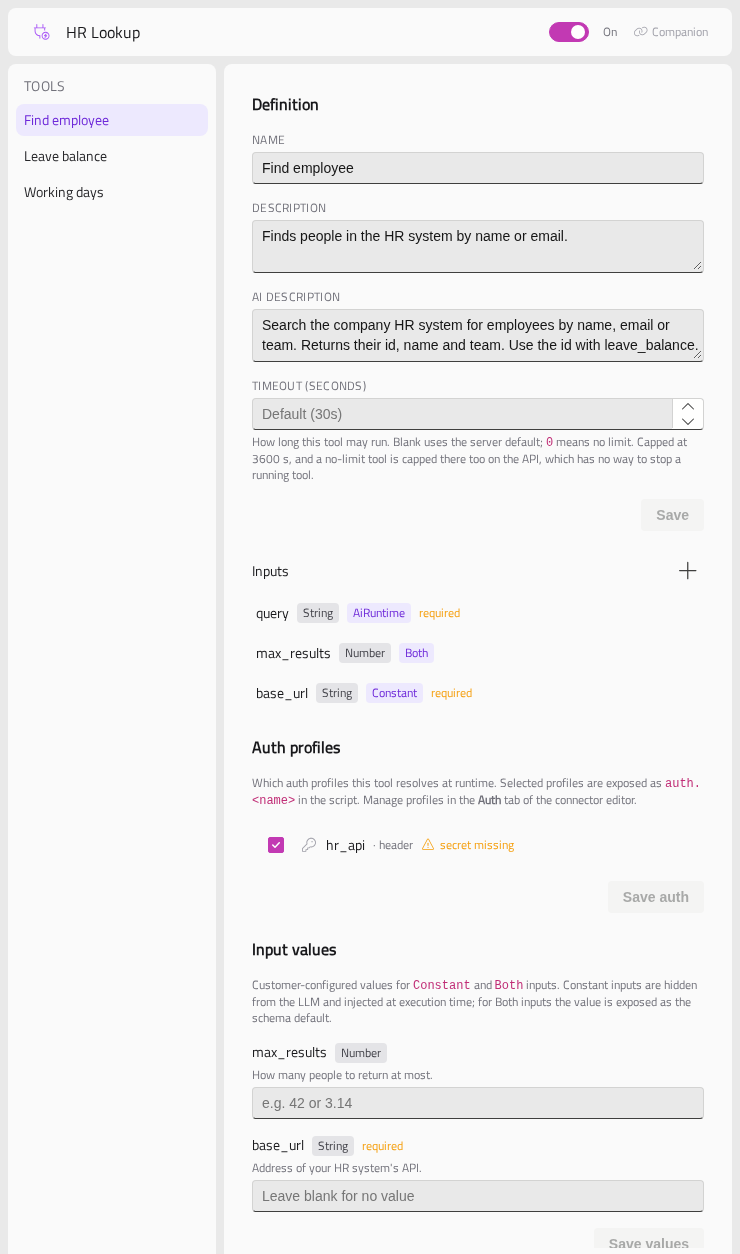
The header shows the Connector's name and its On / Off switch. See Switching a connector off while you work.
The tool's settings are in three sections, each with its own save button:
| Section | What it holds | Save with |
|---|---|---|
| Definition | Name, Description, AI Description and Timeout (seconds), then the tool's Inputs | Save |
| Auth profiles | Which of the Connector's auth profiles this tool uses. Tick each one. See Auth Profiles | Save auth |
| Input values | Values for this Gateway's Constant and Both inputs. Shown only when the tool has some | Save values |
Timeout
Timeout (seconds) is how long the tool may run before Optima stops it.
| Value | Meaning |
|---|---|
| Blank | The Gateway's default, 30 seconds unless changed in Settings |
| A number | That many seconds, up to the Gateway's maximum (3,600 seconds unless changed) |
0 |
No limit, where someone can stop the tool: in a chat, and in the debug runner. On the API, which has no way to stop a running tool, it is held to the Gateway's maximum |
Set a timeout on every tool. Quick lookups need 30–60 seconds; walking a large folder or a slow API, 120–300; builds and test runs, 0. See Timeouts for how to handle them in your script.
Writing The AI Description
The AI Description is what the model reads. It is the biggest single factor in whether the model uses your tool well. Say:
- What the tool does and what it returns.
- When to use it — and when to use another tool instead. Name the other tools by slug.
- Anything that will trip the model up: "Read the file before editing it", "Results are paged — use offset", "Dates are UTC".
For example:
Change part of an existing file by replacing an exact string. Read the file first so the text you supply matches byte for byte, including indentation. The edit is refused if 'old_string' is not found, and also if it appears more than once and 'replace_all' is false — so include enough surrounding context to make it unique rather than guessing.
The Description is for people, and the model does not rely on it. Keep it to one line.
How Many Tools
How you divide a Connector's work into tools affects how well the model uses them:
- One tool, one action. Prefer
list_issues,get_issueandcreate_issueover a singleissuestool with anactioninput. Models choose between named tools more reliably than they fill in a mode. - Few inputs. Five well-described inputs work better than twelve.
- Small results. The model reads at most 16 KB of a result. See Keeping results small.
Inputs
Inputs are the tool's parameters. The model sees them as the tool's arguments, and your script reads them as inputs.<name>.
In the tool's settings window, click + beside Inputs to add one. Point at an input to edit or delete it.
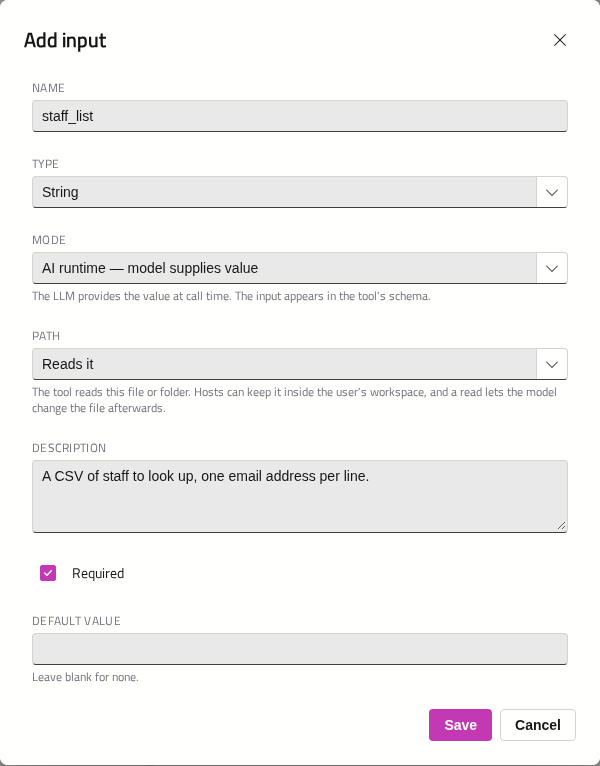
| Field | What it is |
|---|---|
| Name | The argument name the model sees, and inputs.<name> in your script |
| Type | String, Number, Boolean, Object or Array |
| Mode | Who supplies the value. See Modes |
| Path | String inputs only. Whether the input names a file or folder. See Path inputs |
| Description | What the model reads about this input |
| Required | Ticked by default. Untick for an optional input |
| Default value | Used when no value is given. See Defaults |
Names
An input's name goes into Python as it stands, so it must be a valid Python name:
- letters, digits and underscores, not starting with a digit — use
snake_case; - not a Python keyword such as
from,class,import,in,is,globalorNone. Usefrom_date,class_name,is_activeinstead; - different from the tool's other inputs.
The window will refuse a name that breaks these rules.
Modes
An input's mode says who supplies its value:
| Mode | Who supplies the value | Does the model see it? | Use it for |
|---|---|---|---|
| AI runtime — model supplies value | The model, on each call | Yes | Everything the model should decide: search words, paths, IDs, limits |
| Constant — customer-configured, hidden from model | The administrator who installs the Connector, once | No | Settings for one installation: a base URL, a tenant or organisation ID, a region |
| Both — customer default, model may override | The administrator sets a default; the model may change it | Yes, with the administrator's value as the default | A sensible default the model sometimes needs to change |
Administrators enter values for Constant and Both inputs in the tool's Input values section. On your own Gateway, you can do the same to test.
Warning
Never use a Constant input for a password, key or token. Configured values are stored as plain settings, not encrypted like credentials. Use an auth profile.
A required Constant input with no default will fail every call until an administrator gives it a value. That is right for something mandatory, such as a base URL — but say so in the Connector's description, so that administrators know to set it.
Defaults
Type a default as you would type it into a form, not as code:
| Type | Example |
|---|---|
| String | US |
| Number | 200 |
| Boolean | true or false |
| Object | {"key": "value"} |
| Array | ["a", "b"] |
A default that does not match its type is ignored. Give optional inputs a default whenever there is a sensible one — and still handle a missing value in your script. See Inputs in Python.
Writing Input Descriptions
The model fills in arguments from these descriptions alone. Say what format you expect ("absolute path", "ISO 8601 date"), the units, the default, the limit, and any trap — for example, "Relative paths will not work."
Path Inputs
If an input names a file or a folder, say so with Path:
| Path | Choose it when the tool… | Example |
|---|---|---|
| Not a path | Takes an ordinary value | A search term, a command, a glob pattern |
| Reads it | Reads the file, or lists or searches the folder | read_file.path, grep.path, a command's working folder |
| Writes it | Creates or replaces it without needing what was there | A download target, an export file |
| Changes it — must be read first | Edits or overwrites a file someone may be working on | write_file.path, edit_file.path |
Optima never guesses what a tool does from its name. It applies its safeguards to what a Connector declares, so an input left as Not a path gets none of them:
- The Workspace (Client Connectors, in the desktop app). A relative path is resolved against the conversation's Workspace folder before your script sees it. A path outside the Workspace will make the person confirm first.
- Read before write. A Changes it — must be read first input that names an existing file is refused unless the model has read that file in this conversation, with a Reads it input of any Connector, and the file has not changed since. Creating a new file is never blocked. The debug runner does not apply this rule.
See Using Tools for what the person sees.
Some rules:
- Prefer Changes it — must be read first over Writes it for anything that replaces a file a person may have been editing.
- Mark only the input that is the path. File contents, commands, globs and search patterns are not paths.
- Only String inputs can be paths.
Warning
The Workspace is a safeguard, not a sandbox. It covers inputs you declare. It does not stop a script from opening other files, or a command from reaching elsewhere.
Deleting A Tool
Point at the tool in the editor's sidebar, click its bin, and confirm with Delete. This cannot be undone.